



A website form can look completely normal while failing at the most important part: delivering the visitor’s information to your business. The submit button may do nothing, an error may appear, or the visitor may see a success message even though no email or CRM record is created.
When a website form is not working, the problem can come from the page, browser, form settings, email delivery, spam protection, hosting, plugins, integrations, or the live deployment. Finding the cause requires more than checking how the form looks.
This guide explains why website forms stop working, how to trace the failure, what to test on different platforms, and how to prevent lost inquiries.
Build a cleaner, stronger website with Xander Web Studio.
Get practical help with your website, from content updates and page improvements to SEO, design cleanup, technical fixes, and launch support.
Key Takeaways
- A success message does not prove delivery. The form may accept the visitor’s input while the email notification, CRM connection, webhook, or automation fails afterward.
- Find the exact failure point. Determine whether the problem happens before submission, during the browser request, inside the server or form service, or after the submission is stored.
- Test the complete workflow regularly. Submit the live form, confirm the stored entry, check the notification inbox, and verify every connected system instead of waiting for a customer to report a problem.
Businesses that need help diagnosing failed forms can use professional website support for form testing, delivery checks, mobile corrections, integrations, and technical troubleshooting.
What Does “Website Form Not Working” Actually Mean?
People often use the same description for several different failures. Before changing settings or installing another plugin, identify what the visitor and the business are experiencing.
The Visitor Cannot Submit
The visitor may be blocked before any information leaves the page.
Common symptoms include:
- The submit button does nothing
- The button remains in a loading state
- A required field error will not clear
- The form returns a general error
- reCAPTCHA does not load
- The page refreshes and removes the entered information
- A file upload never finishes
- The form works on desktop but not mobile
- The form works in one browser only
These symptoms usually point toward validation, JavaScript, layout, browser, spam-protection, or front-end configuration problems.
The Submission Is Stored but No Email Arrives
The visitor may see a successful confirmation, and the entry may exist inside WordPress, Webflow, a form platform, or a CRM. However, the business never receives the notification.
In this situation, the form itself may be working. The failure is more likely related to:
- Notification recipients
- Sender settings
- Email authentication
- Hosting mail configuration
- Spam or quarantine filtering
- Provider rate limits
- An upstream email outage
- A disconnected automation
WordPress documentation notes that a successful mail action does not necessarily mean the recipient received the email. That distinction is important when a form says “sent” but the inbox remains empty.
The Email Arrives but Other Systems Fail
Some forms are expected to do more than send an email. They may also create a CRM lead, add a subscriber, schedule an appointment, store a file, trigger a text message, or send the visitor to a thank-you page.
The failure may affect only one step. For example:
- Email notification arrives, but no CRM record appears
- CRM record appears, but the sales team is not assigned
- Payment succeeds, but the membership is not created
- Booking is confirmed, but the calendar event is missing
- Form is stored, but analytics does not record the conversion
- Visitor receives a confirmation, but the business does not
Map every expected outcome before troubleshooting so a partial success is not mistaken for a fully working form.
Why Forms Stop Working After They Worked Before
A form does not need to be edited directly for it to fail. It depends on several systems that can change independently.
Software and Website Updates
A plugin, theme, page builder, framework, browser, or CMS update can change how the form script loads or how submissions are processed.
Possible changes include:
- Updated JavaScript libraries
- Changed form markup
- New validation rules
- Removed functions
- Theme conflicts
- Caching differences
- Security restrictions
- PHP or server version changes
- Updated API requirements
WordPress recommends troubleshooting plugins when a feature stops behaving as expected. Its official plugin troubleshooting guidance explains how conflicts and incompatibilities can be isolated.
Account and Configuration Changes
The form may depend on an account that was changed outside the website.
Examples include:
- A recipient email was removed
- An employee account was disabled
- A form license expired
- A payment account changed
- An API token was regenerated
- A CRM password changed
- A booking calendar was disconnected
- A storage limit was reached
- A domain was removed from reCAPTCHA
- A webhook URL was replaced
Document who owns each connected account and where credentials are stored securely.
Domain, Hosting, or Deployment Changes
Moving the website or changing the production setup can interrupt form processing.
Common causes include:
- A new domain is not allowed by the form service
- DNS records were changed
- Email authentication was not recreated
- Production environment variables are missing
- The API endpoint still uses a staging URL
- HTTPS settings changed
- Cross-origin requests are blocked
- A serverless function is not deployed
- The form action points to the old host
- A firewall blocks the request
Preview and production environments can behave differently. Vercel’s official environment variables documentation explains that variables can be assigned separately to development, preview, and production.
Twelve Common Reasons Website Forms Stop Working
The following causes account for many contact, booking, application, registration, and checkout form failures.
1. A Required Field or Validation Rule Blocks Submission
Forms commonly validate email addresses, phone numbers, dates, file types, password lengths, required checkboxes, and other values before accepting a submission.
The rule may be correct, but the error message may be unclear or hidden. It may also reject information that should be valid.
Typical problems include:
- A required field is visually hidden
- A phone pattern accepts only one format
- A date range is outdated
- A checkbox is required without explanation
- An email field contains accidental spaces
- A field added through conditional logic remains required
- The error appears above the visible area
- Browser and custom validation conflict
MDN’s form validation guide explains how browsers check required controls and input formats before information reaches the server.
Test with both valid and invalid information. Every failure should identify the affected field and explain how to correct it.
2. The Submit Button Is Not a Real Submit Control
A button can look correct but lack the behavior required to submit the form.
This may happen when:
- A normal button is used instead of a submit button
- A page builder element is placed outside the form
- Custom JavaScript intercepts the click
- An overlay blocks the button
- The button is disabled after loading
- A nested form creates invalid markup
- The form action has been removed
Webflow specifically advises checking that a form contains a Submit button. Its notification troubleshooting documentation notes that a regular button will not submit the form.
Inspect the actual form structure rather than judging the button by appearance.
3. JavaScript Errors Interrupt the Form
Many forms use JavaScript for validation, conditional fields, AJAX submission, CAPTCHA, file uploads, confirmation messages, and third-party integrations.
An error in another script can sometimes prevent the form code from running.
Possible sources include:
- A missing JavaScript file
- Plugin conflicts
- Incorrect selectors
- Duplicate libraries
- An outdated embed
- A blocked third-party script
- A syntax error
- Consent tools preventing required code
- Optimization tools changing load order
Open the browser’s DevTools Console and reproduce the problem. Red errors, blocked resources, and failed requests can reveal where the workflow stops.
Do not assume the first console message is the cause. Record errors before and after clicking Submit and check whether they reference the form, an integration, or a required library.
4. The Form Sends Data to the Wrong Endpoint
The form action or JavaScript request tells the browser where to send the information.
It may still point to:
- A staging domain
- An old API route
- A removed server
- An expired third-party endpoint
- An incorrect path
- An HTTP URL on an HTTPS site
- A development function
- A deleted automation webhook
Modern forms may use JavaScript and the Fetch API to send data programmatically. MDN’s form submission guide describes how form data can be sent to an endpoint.
Use the browser Network panel to check the request URL, method, status code, response, and timing.
5. Email Notifications Are Misconfigured
The form may process correctly but send notifications to the wrong place.
Review:
- Recipient address
- CC and BCC fields
- Reply-to address
- Sender address
- Subject line
- Conditional routing
- Department assignment
- Notification status
- Form-specific settings
- Sitewide email settings
Avoid using the visitor’s email address as the From address when the website is not authorized to send from that visitor’s domain. Use an authenticated address on the website’s domain and place the visitor’s address in Reply-To when supported.
Check whether the recipient changed roles or whether an inbox was renamed, suspended, or deleted.
6. Email Authentication or Deliverability Fails
The website may hand the notification to a mail service, but the recipient’s provider can still reject, delay, quarantine, or classify it as spam.
Important email authentication systems include SPF, DKIM, and DMARC. Google’s sender guidelines recommend configuring these records to improve authentication and delivery.
Possible problems include:
- Missing SPF authorization
- Invalid DKIM signatures
- DMARC alignment failures
- A From domain that does not match the sender
- Poor domain or IP reputation
- Excessive sending volume
- Shared-host mail restrictions
- Recipient spam filters
- Attachment policies
Check the spam, quarantine, promotions, and security folders. Review delivery logs when the email provider offers them.
7. Spam Protection Blocks Legitimate Visitors
CAPTCHA, honeypots, firewall rules, rate limits, and bot-detection systems protect forms from abuse. Incorrect configuration can also block real people.
Common symptoms include:
- CAPTCHA never appears
- CAPTCHA succeeds but the form fails
- Every submission is marked as spam
- Office users can submit but customers cannot
- VPN users are blocked
- Multiple submissions trigger a rate limit
- A form works only when security tools are disabled
Google’s reCAPTCHA verification documentation explains that response tokens are verified on the backend and expire after a short period. Old, reused, missing, or incorrectly verified tokens will fail.
When changing domains or moving from staging to production, confirm that the correct site and secret keys are used for the live domain.
8. Plugins, Themes, or Optimization Tools Conflict
WordPress forms often depend on a plugin, page builder, theme, SMTP tool, spam service, cache, and security plugin at the same time.
A conflict may begin after:
- Automatic updates
- Installing a new plugin
- Changing themes
- Enabling script delay
- Combining JavaScript files
- Changing PHP versions
- Adding a firewall rule
- Updating the form plugin
Test conflicts in staging. Disable suspected tools individually, clear relevant caches, and submit after each change.
Do not disable security, caching, or business-critical plugins permanently without understanding their purpose. Identify the exact conflicting setting or replace an unsupported component safely.
9. The Integration or Webhook Has Expired
Forms frequently pass data to other systems through APIs, webhooks, or automation platforms.
Failures can result from:
- Expired tokens
- Changed field names
- Removed permissions
- Deleted workflows
- New API versions
- Account ownership changes
- Invalid webhook signatures
- Request limits
- CRM field requirements
- Temporary provider outages
Check the logs in both systems. The website may report success because the form itself stored the entry, while the connected service rejected the follow-up request.
Test with a unique submission and trace its identifier through the form platform, webhook, automation, CRM, and notification system.
10. Storage, Submission, or Plan Limits Are Reached
Some form services limit:
- Monthly submissions
- Stored entries
- File storage
- Notification recipients
- Automation runs
- API requests
- Upload size
- Retention period
A free or lower-tier plan may stop processing, stop storing, or change how submissions are handled after a limit is reached.
Review billing, usage, form storage, rejected submissions, and account alerts. Delete old data only after confirming whether it must be retained for business or legal reasons.
11. Mobile Layout Problems Hide the Real Error
The form may technically work, but visitors cannot complete it on smaller screens.
Examples include:
- The submit button is below a fixed popup
- Error text appears outside the viewport
- Two-column fields do not stack
- A date picker extends off screen
- The keyboard covers the active field
- Dropdown options cannot be reached
- A sticky header covers the confirmation
- reCAPTCHA is wider than the container
The mobile layout guide explains how fixed widths, embeds, spacing, and positioned elements can create mobile interaction problems.
Test the form on real phones, not only a resized desktop browser.
12. Production Settings Differ From Preview
A form can work locally or on staging and fail after deployment.
Check differences in:
- API URLs
- Environment variables
- Email credentials
- reCAPTCHA keys
- Allowed domains
- Database connections
- Webhook secrets
- CORS rules
- Serverless functions
- Build-time variables
Vercel notes that missing variables are a common cause of situations where preview works but production does not. Review deployment environments and redeploy after changing variables when required.
Step-by-Step Website Form Troubleshooting
Avoid changing several settings at once. A structured process helps identify the actual failure instead of hiding it.
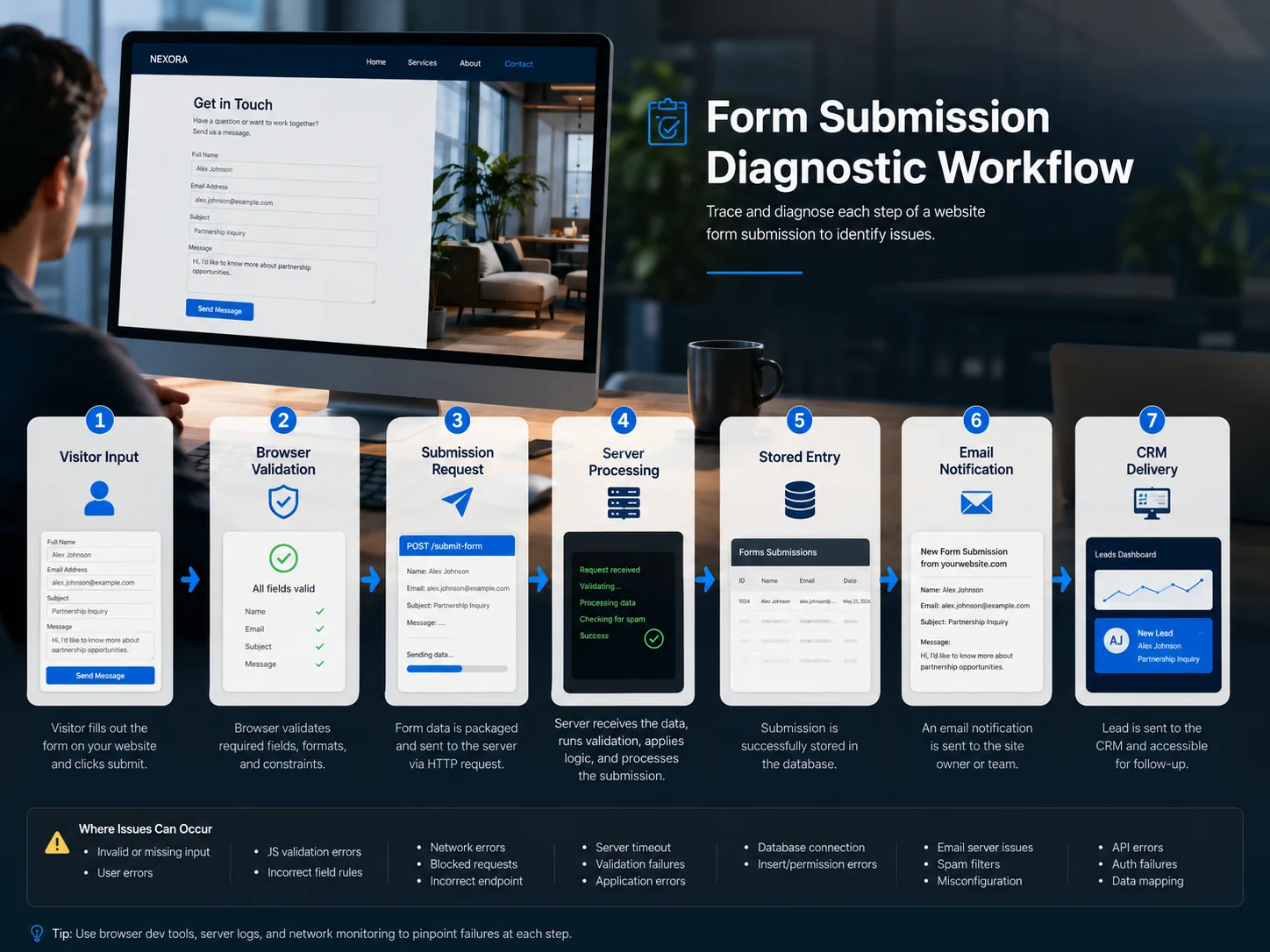
Step 1: Reproduce and Locate the Failure
Record the page URL, form name, device, browser, date, information entered, error message, expected result, and recent website changes. Use a unique test name and email so the entry is easy to locate.
Check the form platform, CMS, database, or CRM. If the entry exists, the browser reached at least part of the backend, so focus on notifications and integrations. If no entry exists, investigate validation, JavaScript, spam protection, the request endpoint, server processing, and storage.
Webflow lets site owners review entries in its form submissions area when forms are processed by Webflow.
Step 2: Inspect the Browser and Backend
Open developer tools before submitting. In the Console, look for JavaScript errors, blocked scripts, missing resources, CAPTCHA errors, and security warnings. In the Network panel, inspect the request URL, method, status code, payload, response, redirects, and timing.
A request that never appears may have been blocked before sending. A 400-level response often indicates rejected data, authorization trouble, or an invalid route. A 500-level response points toward server-side failure.
Then review server, function, or form-service logs at the same time. Confirm that the endpoint exists, required fields match, credentials are valid, storage is available, the plan is active, and the live domain is allowed.
Step 3: Test Delivery and Connected Systems
Once the submission is stored, test the notification layer. Verify the recipient, sender, Reply-To, mail service, SPF, DKIM, DMARC, spam folders, delivery logs, provider status, and rate limits.
List every expected follow-up action, such as a business email, visitor confirmation, CRM lead, sales assignment, text message, analytics event, and thank-you page. Check each step separately. One successful email does not prove that the full automation worked.
Step 4: Isolate Conflicts and Verify Production
Use staging or troubleshooting mode to disable suspected components one at a time, such as cache settings, script optimization, security rules, spam tools, form add-ons, recent plugins, custom scripts, or theme overrides. Retest after each change and restore settings that are not responsible.
After applying the fix, publish deliberately and test the actual production URL in a private window and on mobile. Confirm the stored entry, notifications, integrations, confirmation states, and analytics. A staging success is not final proof.
When the Form Says “Success” but No Email Arrives
This is one of the most common form failures because the visitor-facing process can succeed while delivery fails afterward.
Verify Storage and Notification Routing
Check whether the entry is stored. If it exists, preserve it and focus on the notification layer. If it is missing, the success message may be triggered incorrectly or the data may be sent somewhere else.
Confirm the form-specific recipient rather than only the site administrator address. Review CC, BCC, conditional routing, department assignment, and renamed form options. A missing condition can prevent the expected notification.
Authenticate the Sender and Check Logs
Use an authenticated address on the website’s domain as the From address. Place the visitor’s email in Reply-To when supported instead of making the website appear to send from a domain it does not control.
Search spam, quarantine, promotions, forwarding, blocked senders, and mail-routing rules. Provider logs may show whether a message was delivered, deferred, rejected, or never received.
Reliable email delivery is often part of a broader website fix service when forms repeatedly lose notifications.
Platform-Specific Form Problems
The same symptom can have different causes depending on how the website was built.
WordPress Forms
WordPress forms can involve a form plugin, theme, page builder, SMTP tool, spam service, cache, security plugin, and hosting environment.
Plugin and theme conflicts. A conflict can affect field display, validation, submission, uploads, CAPTCHA, notifications, conditional logic, or payments. Use WordPress Site Health and available logs, then test conflicts in staging.
Email delivery. Review the From address, SMTP or API connection, domain authentication, hosting restrictions, spam filtering, notification settings, and error logs. Do not install several SMTP plugins at once; configure one delivery method correctly.
Caching and security. Optimization tools may delay or combine form scripts, while security tools may block requests, CAPTCHA, file uploads, or repeated tests. Clear relevant caches after changes, but do not treat cache clearing as a complete diagnosis.
For recurring plugin, content, and form maintenance, CMS update support can help protect shared templates and existing functionality.
Webflow Forms
Webflow can process native forms and store submissions, but publishing and configuration still matter.
A custom form action sends data to an external destination instead of the normal Webflow workflow. Confirm that the action is intentional and current. Review submission storage, recipients, sender details, spam folders, the Submit button type, publishing, and provider incidents.
Webflow’s form notifications guide recommends confirming that the submission succeeded before focusing on the notification email.
Also review reCAPTCHA settings. When validation is enabled sitewide, a form missing the required reCAPTCHA element can fail. Test the published site rather than only the Designer preview.
Custom and Vercel Forms
Code-based websites may use an API route, serverless function, external form service, or custom backend.
Confirm that production has the required API keys, mail credentials, database URLs, reCAPTCHA secrets, webhook keys, CRM tokens, and allowed origins. Never expose private secrets in browser code or a public repository.
When a form sends data to another domain, the receiving server must allow the browser’s origin. MDN’s CORS guide explains how servers use response headers to permit cross-origin access.
Check runtime logs for missing modules, invalid credentials, database failures, timeouts, request-size limits, unhandled exceptions, or provider rejection. Do not show a success state before the backend confirms acceptance.
Professional deployment support can help trace the request from the page to the deployed function.
Mobile Usability and Form Accessibility
A form should not only process correctly. Visitors must be able to understand and complete it.
Labels, Instructions, and Errors
Every field should have a clear label. Placeholder text should not be the only instruction because it disappears when the visitor enters information.
W3C’s form labels guidance explains that properly associated labels help users understand controls and increase the clickable area.
Error messages should:
- Identify the affected field
- Explain the problem
- Explain how to fix it
- Remain visible
- Not rely only on color
- Be announced appropriately to assistive technology
Mobile Interaction
Test:
- Input types
- Keyboard behavior
- Date pickers
- Dropdowns
- File uploads
- CAPTCHA width
- Submit button visibility
- Confirmation messages
- Landscape orientation
Use suitable field types so mobile devices can present an appropriate keyboard for email, telephone, or numeric information.
A visually polished form that cannot be completed on a phone is still a broken form.
How to Prevent Future Form Failures
Forms should be treated as business systems rather than static page elements.
Test and Monitor the Complete Workflow
Test high-value forms weekly or monthly, depending on lead volume. Retest after plugin updates, migrations, DNS changes, form edits, email changes, integrations, security changes, or deployments.
Monitor form entry counts, notification logs, API errors, automation history, analytics events, provider status, and expected lead volume. A sudden drop in completions should trigger a test.
Your small business updates guide provides a broader schedule for checking forms, links, software, content, analytics, and integrations.
Store Records and Document Ownership
When privacy and business requirements allow, store submissions in the form platform, CMS, CRM, or secure database so email is not the only record. Limit access, define retention periods, and avoid collecting unnecessary sensitive information.
Document the form purpose, page URL, platform, recipients, sender service, stored-entry location, CRM connection, spam protection, credentials owner, testing process, and renewal dates.
A complete website support checklist can organize form testing alongside security, backups, mobile layouts, content, and software reviews.
Five Website Form Mistakes to Avoid
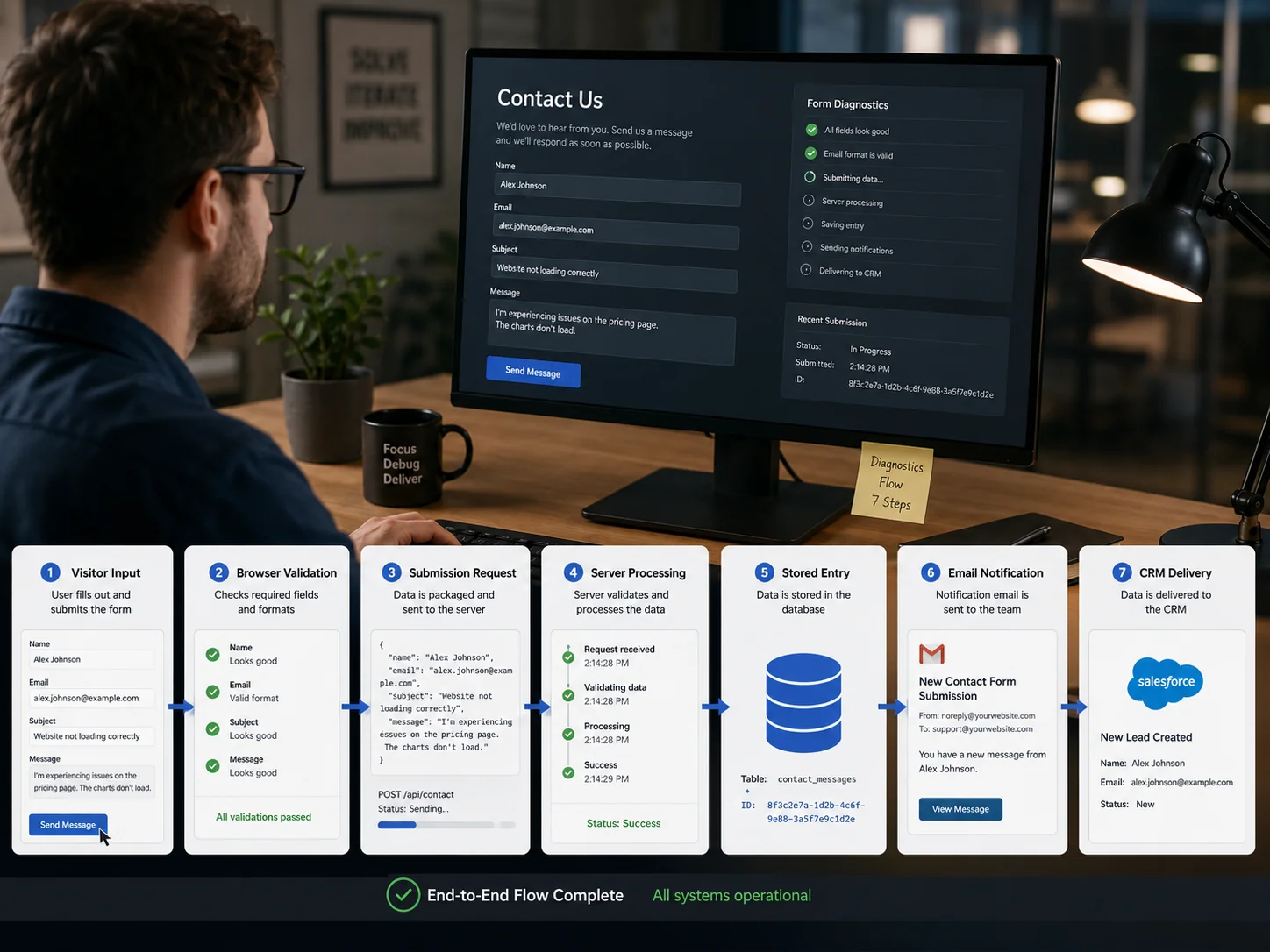
- Testing only the success message. A success state confirms only what the page displays. Check the stored submission, business email, visitor email, CRM, automation, and analytics.
- Changing several systems at once. Updating the form plugin, SMTP service, CAPTCHA, and CRM together makes the failure difficult to isolate. Change and test one layer at a time.
- Using the visitor as sender. Putting an unauthenticated visitor address in the From field can create authentication and deliverability problems. Use an approved sender and place the visitor in Reply-To.
- Testing only on staging. Preview environments can use different domains, credentials, APIs, and email settings. Always retest the live production form.
- Waiting for customers to report it. Many visitors will leave without telling you that the form failed. Schedule routine submissions and monitor stored entries, notifications, and conversions.
Final Website Form Checklist
Use this checklist after creating, editing, migrating, or repairing a form.
Visitor Experience
- Form loads without errors
- Labels are clear
- Required fields are identified
- Validation messages are useful
- Submit button works
- Loading state ends
- Success message appears
- Error state appears when appropriate
- Entered data is not lost unnecessarily
- Mobile keyboard does not block controls
Submission Processing
- Request reaches the correct endpoint
- Server or form service accepts the data
- Submission is stored
- File uploads work
- Spam protection accepts valid users
- Rate limits are appropriate
- No console errors appear
- Network response indicates success
- Production credentials are available
Notifications and Integrations
- Business notification arrives
- Visitor confirmation arrives
- Reply-To works
- CRM record is created
- Automation runs
- Booking or order is created
- Analytics records conversion
- Thank-you page loads
- Spam and quarantine are checked
- Delivery logs show expected results
Platform and Security
- Plugins and themes are compatible
- Custom form action is intentional
- reCAPTCHA keys match the live domain
- API keys are active
- Secrets are not exposed
- Allowed domains are correct
- CORS settings are appropriate
- Storage and plan limits are available
- Backup or rollback exists
- Live site is retested after publishing
If recurring form problems affect leads or customer service, compare available website services and support pricing before applying more temporary fixes.
When to Request Professional Help
A simple recipient-address correction may be safe to complete internally. Professional help is usually appropriate when:
- No submission reaches the backend
- The problem affects payments or bookings
- JavaScript errors appear
- The form depends on custom code
- Email authentication is involved
- Several plugins may conflict
- API or webhook failures occur
- Staging works but production fails
- Customer data may be at risk
- The issue returns after previous fixes
- You cannot identify where the workflow stops
The correct repair should address the failure point instead of only changing the visible form.
Xander Web Studio provides web development help for custom functionality, integrations, responsive forms, and front-end troubleshooting. Businesses creating a focused campaign can also use a landing page service to build a clear conversion journey with properly tested forms and tracking.
For content structure, conversion pages, metadata, and organic visibility, review SEO support services.
Visit Xander Web Studio to review available support, or contact Xander with the affected URL, screenshots, error messages, and expected workflow. You can also learn about the studio before submitting a request.
Related Articles
- Website support signs
- Website support checklist
- WordPress Webflow guide
- Mobile layout issues
- Pre-publish checklist
Let’s make your website clearer, stronger, and easier to manage.
Whether you need small updates, better page structure, cleaner content, SEO improvements, or technical help, Xander Web Studio can help you improve your site with practical support.
Frequently Asked Questions
Why is my website form not working?
A website form may stop working because of validation rules, JavaScript errors, incorrect form actions, plugin conflicts, spam protection, missing environment variables, expired integrations, storage limits, or server problems.
Start by checking whether the browser sends a request and whether the submission is stored. That identifies whether the failure happens before, during, or after processing.
Why does my form say sent but no email arrives?
The form may have stored the submission successfully while the notification email failed.
Check the stored entries, recipient address, sender address, SMTP or mail service, SPF, DKIM, DMARC, spam folder, quarantine, delivery logs, and conditional notification rules. A success message alone does not confirm inbox delivery.
How can I test a website contact form?
Submit unique test information on the live website. Confirm the visitor-facing success message, stored entry, business notification, visitor confirmation, CRM record, automation, thank-you page, and analytics event.
Repeat the test on desktop and mobile and use at least one additional browser when the form includes custom scripts or embeds.
Why does my form work on staging but not live?
Staging and production may use different domains, API keys, environment variables, email credentials, CAPTCHA settings, allowed origins, databases, or serverless functions.
Compare the two environments and confirm that production was redeployed after required configuration changes.
How often should website forms be tested?
High-value contact, booking, application, and checkout forms should be tested regularly, often weekly or monthly depending on lead volume.
Test again after plugin updates, migrations, DNS changes, form edits, email changes, integrations, security changes, or deployments. Routine testing helps identify failures before a large number of inquiries are lost.