


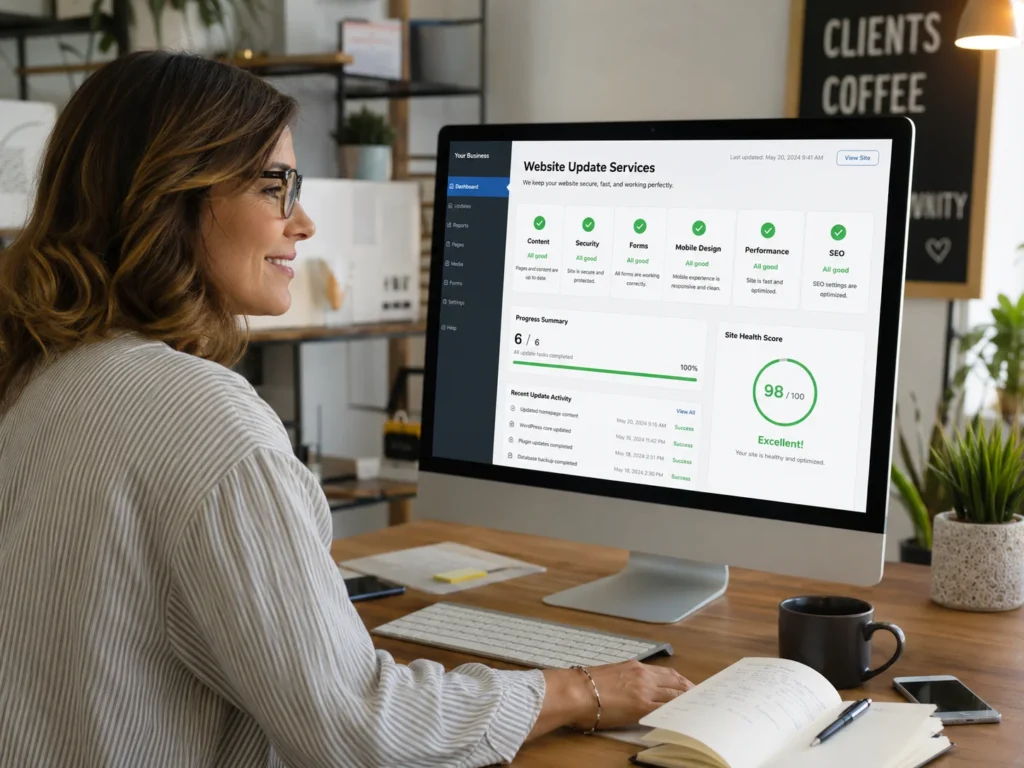
A business website should change as the company changes. Services evolve, prices are adjusted, employees join or leave, operating hours change, software receives updates, and customers begin using new devices and browsers.
However, many small business websites remain unchanged for months or even years. The homepage may still load, but important details can gradually become inaccurate. Forms may stop delivering inquiries. Plugins may become outdated. Mobile layouts may break. Old service information may continue appearing in search results.
Regular website updates for small business owners are not only about changing the design. They help keep the website accurate, functional, secure, accessible, and aligned with current business goals.
The challenge is knowing which updates are important and which ones can wait. A minor spacing issue may not require immediate attention, while a broken contact form could be costing the business new customers every day.
This guide explains the website updates small businesses should not ignore, how often different areas should be reviewed, and when professional assistance may be the safest option.
Key Takeaways
Keep business information accurate. Customers should always be able to find the correct services, prices, contact details, locations, and operating hours.
Test website functions regularly. Forms, buttons, booking systems, checkout pages, and integrations can stop working even when the page still looks normal.
Update software carefully. CMS platforms, themes, plugins, scripts, and dependencies require attention, but updates should be backed up and tested before being applied to a live website.
Review the complete customer journey. Do not check only the homepage. Test the path from search result to landing page, contact form, booking confirmation, payment, or other final action.
Treat updates as ongoing work. A consistent maintenance schedule reduces the likelihood of emergency repairs and outdated information.
Small businesses that need assistance can explore professional website support for content changes, form testing, page corrections, mobile improvements, and technical troubleshooting.
Build a cleaner, stronger website with Xander Web Studio.
Get practical help with your website, from content updates and page improvements to SEO, design cleanup, technical fixes, and launch support.
Why Regular Website Updates Matter
A website is connected to many changing systems. It may depend on hosting, a content management system, plugins, third-party forms, analytics, embedded videos, booking tools, payment services, email delivery, and external scripts.
A change to one of these systems can affect the website even when nobody directly edits the page.
For example, a form provider may change its embed code. A plugin update may conflict with a theme. An employee may change the password for a connected account. A pricing page may become inaccurate after a service package is revised.
Visitors also expect current information. They may lose confidence when they see expired promotions, former employees, incorrect hours, unavailable services, or announcements from several years ago.
Search visibility is another consideration. Google’s SEO Starter Guide emphasizes useful, well-organized content that helps search engines and visitors understand a website. Updating outdated pages can improve clarity and ensure that the content still answers the questions people are searching for.
Regular website maintenance does not mean rebuilding the entire site every month. It means identifying high-impact areas and keeping them accurate, reliable, and useful.
15 Website Updates Small Businesses Should Prioritize
The following updates should be included in a regular small business website review.
1. Contact Information and Business Hours
Incorrect contact information is one of the most damaging errors a business website can contain. A potential customer may try to call an old phone number, visit a former location, or send an inquiry to an unmonitored email address.
Review the following details:
- Business name
- Main phone number
- Department phone numbers
- Email addresses
- Physical address
- Mailing address
- Operating hours
- Holiday hours
- Service areas
- Social media profiles
- Directions and map embeds
Do not review only the contact page. Contact information may also appear in the header, footer, homepage, service pages, location pages, popups, downloadable documents, and structured data.
Click telephone and email links to ensure they work properly. A telephone link should open the calling application on a mobile device. An email link should use the correct recipient address.
If the business recently changed locations or operating hours, update every occurrence. Inconsistent information can confuse customers and make it difficult to determine which details are current.
2. Services, Products, and Pricing
Your website should accurately represent what the business currently sells or provides.
Service and product information often becomes outdated after:
- New services are introduced
- Old services are discontinued
- Packages are reorganized
- Prices increase
- Financing options change
- Availability changes
- Service areas expand
- Product features are updated
- Business policies are revised
Review the homepage, service pages, pricing tables, comparison sections, FAQs, navigation menus, and calls to action.
Avoid updating only the main pricing page if the same prices also appear in service descriptions, promotional sections, blog posts, or downloadable guides.
Customers should understand what is included, who the service is for, and what their next step should be. If an offer has changed significantly, it may require more than replacing one number. The surrounding explanation, CTA, FAQ, and page title may also need revision.
Businesses with frequent product or service changes may benefit from CMS update support to keep structured content consistent across the website.
3. Contact Forms and Lead Notifications
A form can look completely normal while failing behind the scenes. The visitor may press the submit button and see a success message, but the business might never receive the notification.
Form failures can be caused by:
- An outdated recipient address
- Incorrect email authentication
- Hosting restrictions
- Plugin conflicts
- Spam filtering
- Expired integrations
- Broken automation
- JavaScript errors
- Missing required fields
- Changed API credentials
- Incorrect CRM settings
Test every important form using real information. Confirm that:
- Required fields work
- Error messages are understandable
- The form submits successfully
- A confirmation appears
- The notification reaches the correct inbox
- The lead is stored in the CMS or CRM
- Any automated reply is delivered
- Tracking records the submission
- The form works on mobile
- Spam protection allows valid inquiries
MDN’s web forms guide covers the structure, controls, validation, and behavior involved in a functioning website form.
Do not assume that a form works because it worked when the website launched. Submit test inquiries regularly, especially after plugin updates, hosting changes, migrations, DNS updates, or CRM modifications.
When a form fails repeatedly, a professional website repair service may be needed to review the form configuration, scripts, email delivery, and connected systems.
4. Calls to Action and Buttons
Every important button should lead visitors to the expected destination.
Common calls to action include:
- Contact Us
- Request a Quote
- Book a Call
- View Pricing
- Get Started
- Apply Now
- Buy Now
- Download Guide
- Schedule Service
Buttons can become outdated when pages are renamed, forms are replaced, booking links change, or sections are duplicated from another page.
Test buttons in:
- The header
- The mobile menu
- The hero section
- Service cards
- Pricing tables
- Blog posts
- Popups
- Sticky banners
- The footer
- Thank-you pages
Check where each button leads and whether the destination still matches the button label.
A “View Pricing” button should not lead to a general contact page unless that is clearly explained. A “Book a Call” button should open the correct scheduling calendar rather than an old employee’s account.
Buttons should also be checked on mobile devices. An overlay, sticky element, or responsive layout problem may prevent users from pressing them.
5. Security Software and User Access
Security-related website updates should not be postponed without understanding the potential risk.
Depending on the platform, security work may include:
- CMS core updates
- Plugin updates
- Theme updates
- Framework updates
- Package updates
- Stronger passwords
- Multifactor authentication
- User access reviews
- Firewall settings
- Malware scanning
- SSL certificate checks
- Spam protection
- Hosting security updates
CISA’s Secure Our World initiative highlights practices such as using strong passwords, enabling multifactor authentication, recognizing phishing attempts, and keeping software updated.
Review administrator accounts regularly. Remove accounts belonging to former employees, agencies, contractors, or vendors who no longer need access.
Each person should have only the level of access required for their responsibilities. A content editor may not need full administrator permissions.
Warning signs requiring prompt attention include:
- Unknown administrator accounts
- Unexpected redirects
- Changed website content
- Browser security warnings
- Suspicious files
- Spam pages in search results
- Unusual login attempts
- Disabled security tools
- Unfamiliar plugins
- Hosting malware alerts
Do not ignore these signs because the homepage still appears normal. Security issues may affect only certain pages, visitors, devices, or search-engine crawlers.
6. Website Backups
A website backup provides a recovery option when an update fails, content is deleted, the site is compromised, or the hosting environment experiences a problem.
A useful backup strategy should answer four questions:
- What is being backed up?
- How often is the backup created?
- Where is it stored?
- How would it be restored?
For a WordPress website, both the files and database may be required for a complete restoration. The official maintenance guide recommends performing backups before important maintenance work.
Do not rely entirely on seeing the word “backup” inside a hosting dashboard. Confirm that recent backup files actually exist and that the account needed to access them is controlled by the business.
Before major website updates, consider creating an additional manual or on-demand backup. This is particularly important before:
- Updating many plugins
- Changing themes
- Migrating hosting
- Editing templates
- Modifying the database
- Installing a new integration
- Redesigning important pages
- Changing checkout systems
A backup is most valuable when someone knows how to restore it without causing additional damage.
7. Mobile Layout and Responsive Design
Many website updates are created on a desktop computer but viewed by customers on phones.
A new heading, image, table, button, or form may fit perfectly on a large screen while causing problems at smaller widths.
Check for:
- Text extending beyond the screen
- Oversized headings
- Cropped images
- Overlapping buttons
- Large blank spaces
- Difficult navigation
- Popups that cannot be closed
- Forms requiring horizontal scrolling
- Tables extending off screen
- Sticky elements covering content
- Incorrect section order
- Buttons that are difficult to press
Test multiple pages rather than only the homepage. Blog posts, pricing tables, service pages, landing pages, and contact forms may use different templates.
Use a real phone whenever possible. Browser resizing is helpful, but it may not reproduce every issue caused by the device, operating system, mobile browser, or touch interaction.
A responsive layout should make information easier to access, not simply reduce the desktop design until it fits.
8. Page Speed and Image Optimization
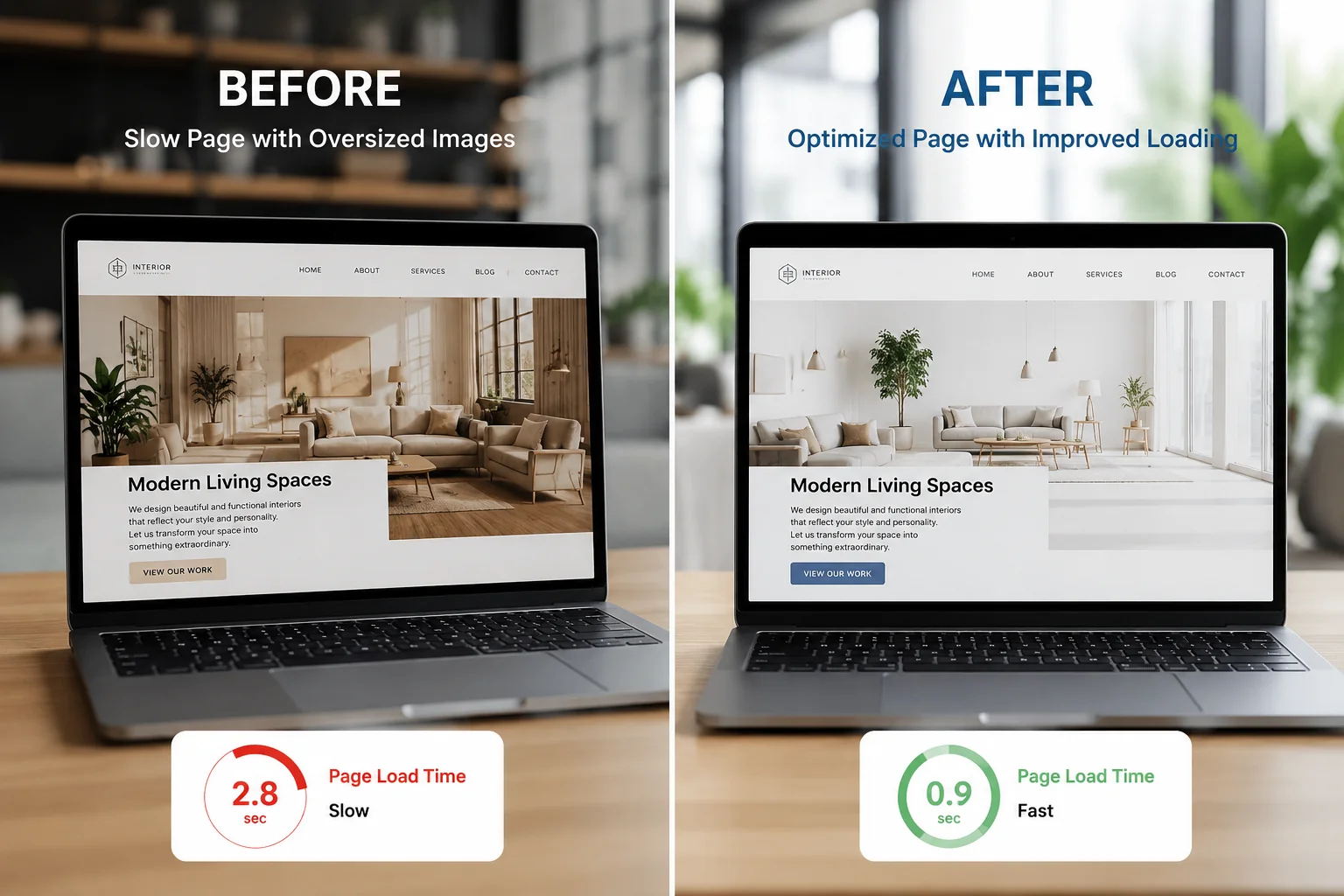
A page that eventually loads is not necessarily performing well. Visitors may leave while waiting for a large image, video, form, or script to appear.
Common performance problems include:
- Oversized images
- Uncompressed video
- Too many plugins
- Heavy animations
- Unused scripts
- Third-party embeds
- Poor caching
- Slow hosting
- Large font files
- Database problems
- Excessive tracking scripts
- Inefficient custom code
Google’s Core Web Vitals guidance evaluates loading performance, responsiveness, and visual stability as key aspects of page experience.
Use PageSpeed Insights as one source of information, but do not focus only on achieving a perfect score. Test the actual experience on desktop and mobile, using realistic connections and devices.
Image updates can produce significant improvements. Before uploading a new image:
- Resize it for its intended display area
- Compress the file
- Use an appropriate format
- Confirm the aspect ratio
- Add descriptive alt text
- Check mobile cropping
- Avoid uploading unnecessary dimensions
Video embeds should also be reviewed. Automatically loading several embedded videos can add scripts and increase the time required for the page to become usable.
9. Broken Links and Redirects
Links can break when pages are deleted, renamed, migrated, or replaced.
Broken links commonly appear after:
- Changing a page URL
- Removing an old service
- Replacing a PDF
- Changing domains
- Migrating platforms
- Reorganizing navigation
- Editing blog categories
- Removing external resources
- Copying content from staging
Check links in:
- Navigation menus
- Buttons
- Body content
- Blog posts
- Image captions
- Author profiles
- Downloadable documents
- Footer sections
- Legal pages
- Related articles
When a page moves, create an appropriate redirect from the old URL to the most relevant new page.
Avoid sending every removed URL to the homepage. A visitor looking for a specific service should be redirected to the closest replacement, not a general page that does not answer the original request.
Redirects should also be tested after migrations. A redirect may be configured but still produce a loop, chain, server error, or incorrect destination.
10. Page Titles, Descriptions, and Headings
Content updates should include the elements that help visitors and search engines understand the page.
Review:
- SEO title
- Meta description
- Main H1
- H2 and H3 structure
- Page URL
- Image alt text
- Internal links
- Social sharing information
- Structured data, when appropriate
The page title should accurately describe the content. Avoid keeping an old title after changing the main service or focus of the page.
Each important page should usually have one clear main heading. Additional sections can then be organized beneath descriptive H2 and H3 headings.
Meta descriptions should summarize the page and encourage the right visitor to click. They should not promise information or services that the page does not provide.
Keyword use should remain natural. The goal is not to repeat “website updates for small business” in every paragraph. The goal is to create a useful page that thoroughly answers the topic.
Professional SEO support services can help review metadata, headings, internal links, content organization, indexing, and search visibility.
11. Old Blog Posts and Website Content
Publishing new content is useful, but older content should not be forgotten.
An article may still receive traffic even when it contains outdated screenshots, old statistics, discontinued tools, broken links, or services the business no longer offers.
Review older content for:
- Outdated instructions
- Old pricing
- Broken external links
- Discontinued services
- Former team members
- Expired promotions
- Old screenshots
- Incorrect product features
- Missing internal links
- Weak calls to action
- Unsupported claims
- Formatting problems
An update does not always require rewriting the complete article. You may only need to replace an image, correct a section, improve the introduction, add current internal links, or clarify the next step.
Your existing website support checklist provides a more detailed process for identifying broken forms, slow pages, mobile problems, outdated information, and other signs that a website needs attention.
When substantially updating an article, review the publication and modified dates. The date displayed should accurately represent how the website handles updates rather than being changed only to make old content appear new.
12. Website Accessibility
Accessibility updates help make website content usable by people with different abilities, devices, and methods of navigation.
A preliminary review can include:
- Keyboard navigation
- Visible focus indicators
- Image alt text
- Form labels
- Heading order
- Text contrast
- Link descriptions
- Video captions
- Page zoom
- Error messages
- Button labels
W3C provides practical accessibility checks for evaluating areas such as page titles, headings, contrast, keyboard access, forms, and multimedia. It also explains that preliminary checks are not a complete accessibility evaluation.
Avoid vague links such as “click here” when the surrounding context does not make the destination clear. Descriptive links help visitors understand where the link leads.
Forms should have clear labels and useful error messages. Color alone should not be the only way an error or status is communicated.
Accessibility should be considered during each update rather than treated as a one-time task after the website is complete.
13. Analytics and Conversion Tracking
Small businesses need reliable information about how visitors find and use their websites.
Tracking may stop or become inaccurate after:
- Migrating platforms
- Replacing a form
- Changing the checkout process
- Updating a consent banner
- Installing a new theme
- Changing domains
- Removing scripts
- Editing Google Tag Manager
- Launching a new thank-you page
- Rebuilding navigation
Review whether analytics is recording:
- Page views
- Organic traffic
- Form submissions
- Phone link clicks
- Email link clicks
- Booking completions
- Purchases
- Downloads
- Important button clicks
- Thank-you page visits
Do not assume tracking works because an analytics script appears in the source code. Test whether current visits and conversions are actually being recorded.
Pay particular attention after migrations. A new website can launch successfully while retaining no analytics code from the previous platform.
Tracking should also match current business goals. A company that previously focused on phone calls may now prioritize consultation forms or online bookings. Its conversion setup should be updated accordingly.
14. Browser and Device Compatibility
Browsers change over time, and website features may behave differently across environments.
A page that works in Chrome may have problems in Safari, Firefox, or Edge. Differences are more likely when the website uses:
- Custom JavaScript
- Advanced animations
- Embedded applications
- Complex forms
- New CSS features
- Sticky elements
- Video backgrounds
- Interactive sliders
- Third-party widgets
MDN’s cross-browser testing guidance explains the importance of identifying the browsers and devices a project needs to support and testing functionality across those environments.
When reporting a browser-specific problem, record:
- Browser name
- Browser version
- Device type
- Operating system
- Exact page URL
- Steps to reproduce it
- Screenshot or recording
This information helps separate a browser issue from an account, network, content, or platform problem.
15. Integrations and Connected Tools
A business website may rely on systems that are not visible to visitors.
Examples include:
- CRM platforms
- Email marketing tools
- Booking systems
- Payment processors
- Accounting software
- Live chat
- Customer portals
- Inventory systems
- Analytics platforms
- Advertising pixels
- Automation tools
- Webhooks
An integration can stop working while the visible page continues to load.
For example, a form may accept a submission but fail to create a CRM record. A checkout may collect payment but fail to send account access. A booking tool may show available times but not add the appointment to the correct calendar.
Review integrations after:
- Changing passwords
- Updating API keys
- Replacing forms
- Migrating platforms
- Changing account ownership
- Modifying workflows
- Updating plugins
- Changing payment systems
- Editing DNS records
- Deploying new code
Keep a record of which tools are connected and who controls each account. Without this information, troubleshooting can become difficult when an employee or vendor leaves.
Custom integration and functionality changes may require web development support rather than a routine content update.
A Step-by-Step Website Update Process
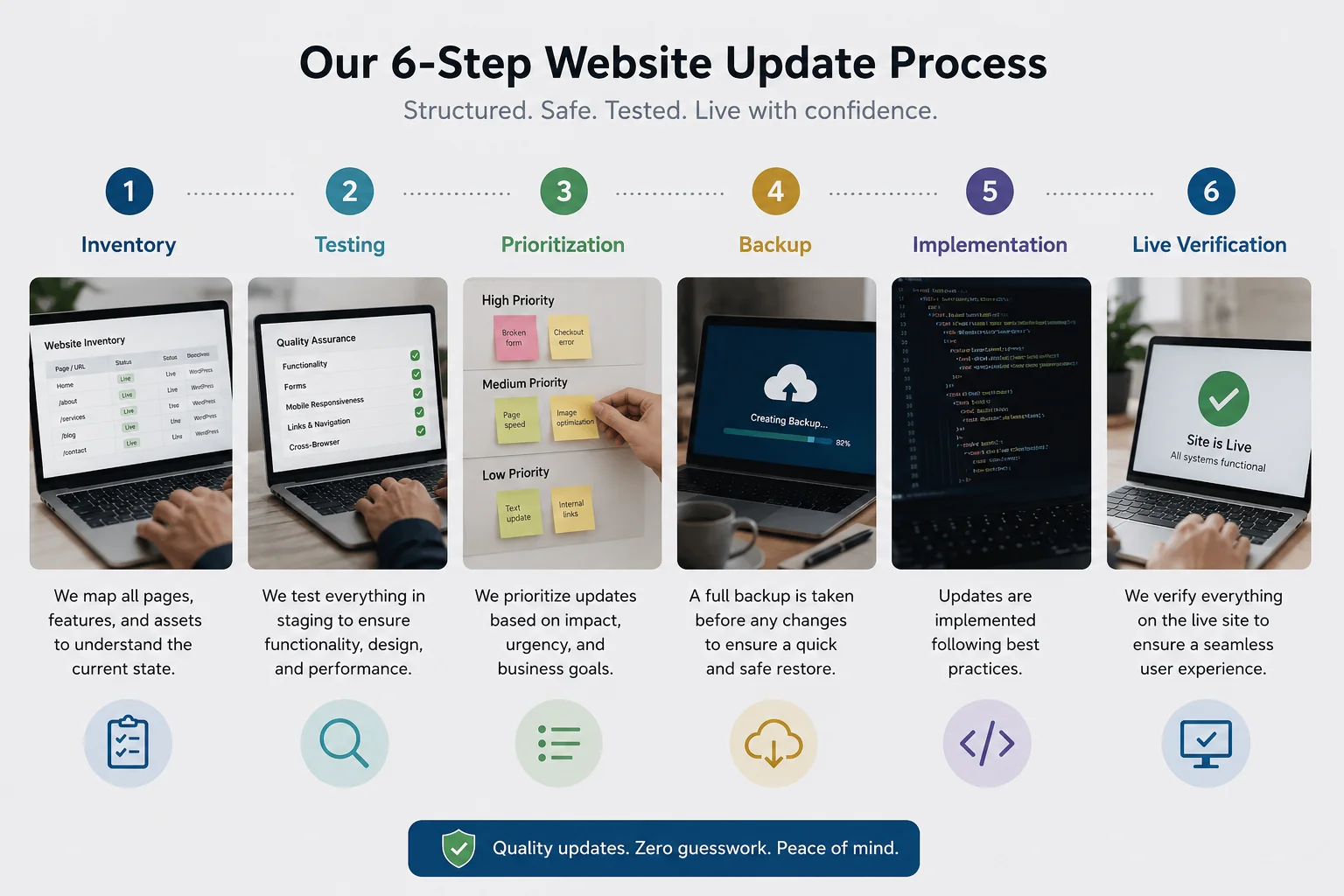
A structured process helps prevent important updates from being missed.
Step 1: Create a Page Inventory
List the important pages and systems connected to the website.
Include:
- Homepage
- Service pages
- Product pages
- Pricing page
- About page
- Contact page
- Location pages
- Blog archive
- Popular articles
- Booking page
- Checkout page
- Customer portal
- Thank-you pages
- Forms and integrations
The inventory does not need to include every tag archive or minor system page during the first review. Start with pages that affect customer trust, leads, bookings, and revenue.
Step 2: Review Business Information
Compare the website with the business’s current operations.
Confirm:
- Services
- Products
- Prices
- Team members
- Locations
- Hours
- Phone numbers
- Email addresses
- Policies
- Certifications
- Service areas
- Calls to action
Mark every inaccurate or unclear item.
Step 3: Test Customer Journeys
Do not inspect pages only as individual designs. Follow the actions a customer would take.
Example journey:
- Find a service page
- Read the offer
- Click the main CTA
- Complete the form
- Receive confirmation
- Confirm the business receives the inquiry
Other journeys may end in a booking, purchase, download, phone call, account registration, or application.
Test the complete journey on both desktop and mobile.
Step 4: Check Technical Health
Review:
- Page loading
- Mobile layout
- Forms
- Buttons
- Broken links
- Security warnings
- Software updates
- Backups
- Analytics
- Integrations
- Browser compatibility
A practical website support checklist can help organize this inspection and identify warning signs before changes are made.
Step 5: Prioritize Updates
Separate updates into urgent, high-priority, and routine work.
Urgent updates include:
- Website outage
- Security warning
- Failed checkout
- Broken lead form
- Customer login failure
- Incorrect critical information
- Malware alert
High-priority updates include:
- Broken mobile navigation
- Incorrect pricing
- Missing service information
- Slow high-traffic pages
- Failed conversion tracking
- Broken integrations
- Important redirect errors
Routine updates include:
- New team photos
- Minor spacing changes
- Blog formatting
- Additional internal links
- Image replacements
- Metadata improvements
- New FAQs
This prevents minor visual adjustments from delaying updates that affect customers or revenue.
Step 6: Back Up Before Editing
Create or confirm a recent backup before high-risk work.
For code-based websites, confirm that the current production code exists in the correct repository and branch.
For CMS websites, review revision history, backup tools, and hosting restore points.
For ecommerce websites, understand how restoring a backup may affect recent orders, customers, products, or inventory.
Step 7: Use Staging When Appropriate
Staging is useful for:
- Template changes
- Navigation restructuring
- Plugin updates
- New page layouts
- Code changes
- Large content revisions
- Checkout modifications
- Form replacements
- Major responsive fixes
Staging is not always required for changing one typo, but higher-risk work should be reviewed before it affects the live website.
Document changes made on staging so they can be accurately transferred or deployed.
Step 8: Test Before Publishing
Review:
- Desktop layout
- Mobile layout
- Buttons
- Forms
- Navigation
- Images
- Links
- Tracking
- Integrations
- Browser compatibility
Testing should focus on the updated area and related functionality. A navigation change may affect every page. A form update may affect notification delivery and CRM automation.
Step 9: Verify the Live Website
After publishing, open the production URL.
Do not rely only on a successful publish message, merge, or deployment status.
Check:
- The correct change appears
- The previous problem is resolved
- No unrelated section changed
- Forms still submit
- Mobile layout remains usable
- Analytics still loads
- Links use production URLs
- Important pages return normally
Clear relevant caches when necessary, but avoid treating cache clearing as the solution to every problem.
How Often Should a Small Business Website Be Updated?
Different areas require different schedules.
Weekly Website Checks
Weekly checks are appropriate for websites that generate regular leads, bookings, or sales.
Review:
- Contact forms
- Checkout
- Booking systems
- Lead notifications
- Website availability
- Security alerts
- Active promotions
- Important customer information
A five-minute form test can identify a problem before many inquiries are lost.
Monthly Website Checks
A broader monthly review should include:
- Business information
- Service pages
- Pricing
- Mobile layouts
- Buttons and links
- Software updates
- Backups
- Page speed
- Analytics
- User access
- Integrations
Monthly reviews are also a good time to remove expired promotions and replace outdated homepage announcements.
Quarterly Website Checks
A quarterly review should examine broader content and business alignment.
Ask:
- Does the website reflect current services?
- Are customers finding the right information?
- Are important pages receiving traffic?
- Do calls to action match current goals?
- Is navigation still clear?
- Are old articles still accurate?
- Are new landing pages needed?
- Is the website attracting the correct audience?
- Are competitors communicating their offers more clearly?
Quarterly checks can identify strategic problems that are not visible during routine technical maintenance.
Annual Website Review
An annual review can examine:
- Overall design consistency
- Technology choices
- Hosting suitability
- Website structure
- Content quality
- Accessibility
- Analytics configuration
- Security practices
- Account ownership
- Integration documentation
- Backup and recovery planning
An annual review does not automatically mean the website needs a redesign. It helps determine whether the current system still supports the business efficiently.
Updates for Different Website Platforms
The update process varies depending on how the website was built.
WordPress Websites
WordPress websites may require reviews of:
- WordPress core
- Themes
- Plugins
- Page builders
- Forms
- User accounts
- PHP compatibility
- Database health
- Caching
- Backups
Apply updates carefully. Updating every plugin simultaneously can make it difficult to identify the cause if something breaks.
Check important templates and forms after updates. A plugin may report a successful update while still creating a layout or compatibility problem.
Webflow Websites
Webflow updates may involve:
- CMS collections
- Components
- Variables
- Breakpoints
- Interactions
- Forms
- Redirects
- Custom code
- Publishing settings
- Staging domains
Changes to a component may affect many pages. Review every instance before publishing.
Confirm that forms still deliver submissions and that custom scripts continue working after page changes.
Shopify Websites
Shopify updates may involve:
- Products
- Pricing
- Inventory
- Collections
- Theme sections
- Applications
- Checkout settings
- Shipping information
- Policies
- Tracking scripts
Be cautious when editing theme code or replacing applications. Checkout, inventory, payment, and subscription integrations should be tested carefully.
GitHub and Vercel Websites
Code-based websites may require:
- Repository access
- Branch review
- Pull requests
- Environment variables
- Build logs
- Preview deployments
- Production deployments
- Dependency updates
- Domain settings
- API integration checks
A preview deployment should be reviewed before merging into the production branch.
After deployment, verify the actual live website. A successful build confirms that the project compiled, but it does not confirm that every form, API, or customer journey works correctly.
Professional deployment support can help with GitHub repositories, Vercel builds, preview links, staging reviews, deployment errors, and production verification.
Common Website Update Mistakes
1. Updating Only the Homepage
The homepage may look current while service pages, pricing tables, forms, and blog posts still contain old information.
Search engines may also send visitors directly to internal pages, meaning they may never see the homepage.
Review every page that receives traffic or supports an important customer action.
2. Making Changes Directly on Live
Minor content corrections may be safe to publish directly, but complex changes should be tested first.
Avoid experimenting with global templates, custom code, plugins, checkout settings, or integrations on the live website without a recovery plan.
3. Skipping Mobile Testing
A desktop update can create mobile problems without affecting the large-screen version.
Check every major update at multiple widths, particularly headings, images, buttons, forms, tables, menus, and sticky elements.
4. Updating Without a Backup
A backup should exist before high-risk work.
Do not wait until content is lost or the website breaks to discover that backups were incomplete, inaccessible, or several months old.
5. Changing Too Many Things Together
When several plugins, templates, scripts, and integrations are updated simultaneously, identifying the source of a problem becomes difficult.
Break high-risk work into manageable stages and test after each stage.
6. Ignoring Forms After Updates
A visual update may unintentionally affect form scripts, validation, email delivery, or automation.
Submit every important form after publishing related changes.
7. Forgetting Analytics
Removing a header script, replacing a form, or changing a thank-you page may interrupt conversion tracking.
Verify analytics and events after migrations, redesigns, form replacements, and checkout changes.
8. Using Unclear Anchor Text
Links should help readers understand where they will go.
Use descriptive anchors such as:
- Website support
- SEO support services
- Support pricing
- Contact Xander
- Website repair service
Avoid repeatedly using vague phrases such as “click here” or pasting long URLs into the middle of a paragraph.
When Should You Request Professional Help?
Small updates may be completed internally when the person making the change understands the platform and has a safe way to restore the previous version.
Professional support is generally safer when an update:
- Requires code changes
- Affects a global template
- Involves customer payments
- Affects forms or CRM integrations
- Requires DNS changes
- Involves a website migration
- Affects many pages
- Requires database work
- Involves a security concern
- Requires a production deployment
- Could cause content loss
- Has no clear cause
- Keeps returning after being fixed
Website support may also be worthwhile when routine updates take time away from running the business.
Xander Web Studio provides website services for WordPress, Webflow, CMS platforms, custom development, landing pages, search optimization, and deployment troubleshooting.
You can review support pricing to compare available options or learn about the studio before requesting assistance.
Final Website Updates Checklist
Use this checklist during a monthly or quarterly review.
Business Information
- Business name is correct
- Phone numbers work
- Email addresses are monitored
- Locations are accurate
- Business hours are current
- Team information is updated
- Service areas are accurate
Services and Content
- Services reflect current offerings
- Prices are correct
- Product information is current
- Expired promotions are removed
- Old blog posts are reviewed
- Calls to action match current goals
- Internal links are relevant
Website Functions
- Forms submit successfully
- Notifications reach the correct inbox
- CRM records are created
- Booking systems work
- Checkout works
- Buttons lead to correct pages
- Downloads are available
- Customer logins work
Design and Usability
- Mobile navigation works
- Text is readable
- Images display correctly
- Buttons are easy to press
- Sections do not overlap
- Popups can be closed
- Important content is easy to find
- Pages work across major browsers
Performance and SEO
- Important pages load properly
- Images are optimized
- Page titles are accurate
- Meta descriptions are relevant
- Heading structure is logical
- Broken links are repaired
- Redirects work
- Analytics records traffic
- Conversions are tracked
- Important pages are indexable
Security and Maintenance
- Software updates are reviewed
- User accounts are current
- Strong passwords are used
- Multifactor authentication is enabled
- Backups are recent
- Backup access is confirmed
- SSL works correctly
- Security warnings are investigated
- Integrations are documented
Keep Your Website Aligned With Your Business
Website updates for small business owners should be treated as ongoing business operations rather than occasional design projects.
The website should accurately explain what the business provides, make it easy for customers to take action, and continue working across current devices, browsers, and connected tools.
Start with the areas that directly affect customers: contact information, services, prices, forms, buttons, bookings, payments, and mobile navigation. Then review security, backups, performance, content, SEO, accessibility, analytics, and integrations.
A consistent update schedule makes problems easier to identify and reduces the likelihood that several outdated or broken elements will accumulate at once.
For help planning or completing your updates, visit Xander Web Studio or contact Xander with the website URL, requested changes, and screenshots of any current problems.
Businesses launching a focused promotion or new service can also consider a dedicated landing page service instead of adding unrelated information to an already crowded page.
Related Website Resources
- Website support checklist
- Website support
- Website repair service
- CMS update support
- Web development support
- SEO support services
- Deployment support
Let’s make your website clearer, stronger, and easier to manage.
Whether you need small updates, better page structure, cleaner content, SEO improvements, or technical help, Xander Web Studio can help you improve your site with practical support.
Frequently Asked Questions
What website updates should a small business prioritize?
Small businesses should prioritize accurate contact information, current services and pricing, functioning forms, secure software, recent backups, mobile usability, page speed, working buttons, and reliable integrations.
Updates that affect customers, leads, bookings, payments, or security should be completed before minor visual adjustments.
How often should a small business website be updated?
Forms, checkout processes, booking systems, and website availability should be checked weekly when they are important to daily operations.
A broader review of content, links, software, backups, mobile layouts, analytics, and integrations should usually be completed monthly. Strategic content, navigation, and conversion reviews can be completed quarterly.
Why are website updates important for small businesses?
Website updates help keep information accurate, customer journeys functional, software secure, and content aligned with current business goals.
Without regular updates, customers may encounter incorrect prices, discontinued services, failed forms, broken links, slow pages, or outdated contact information.
Can I update my small business website myself?
You may be able to complete simple updates yourself when you understand the platform, have the correct access, and know how to preview or restore changes.
Professional help is safer for code changes, security concerns, payment systems, integrations, migrations, database work, global templates, and recurring technical problems.
How do I request website update support?
Provide the website URL, exact pages that need changes, replacement text or images, screenshots, and a description of the expected result.
For technical problems, also include the device, browser, date noticed, recent website changes, and steps needed to reproduce the issue. You can use the contact page to submit the request.