
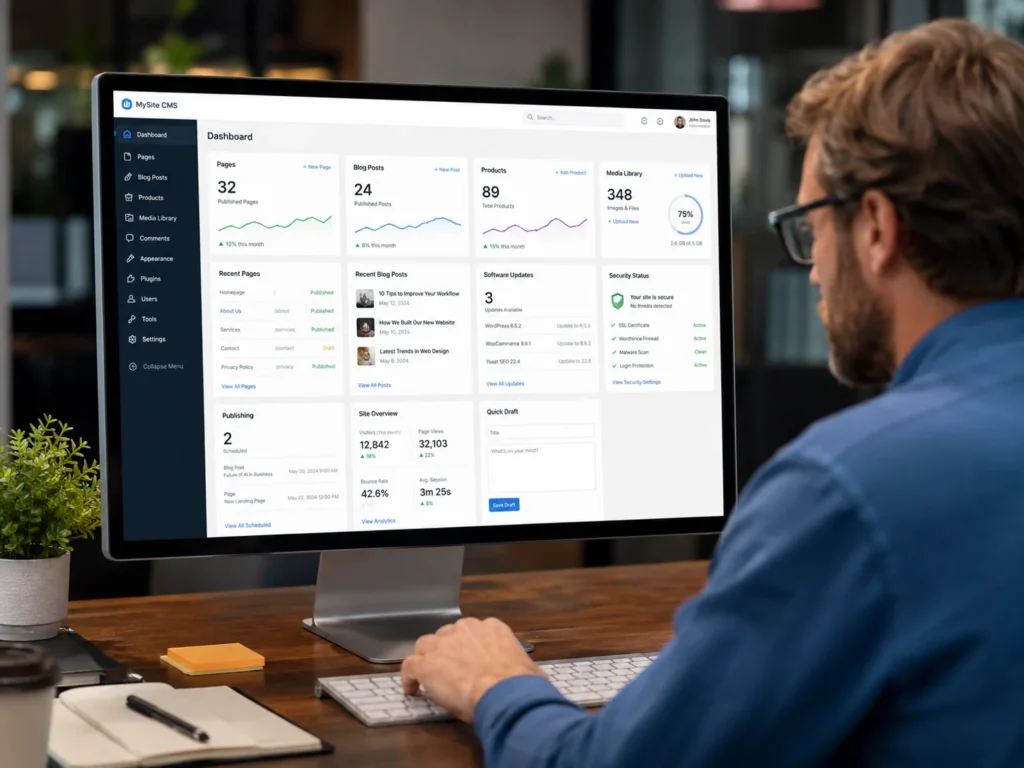
A content management system makes it possible to update a website without rebuilding every page from the beginning. Business owners and website teams can change services, prices, images, blog posts, staff profiles, products, and other information through an organized editing interface.
CMS updates can also refer to changes made to the software that powers the website. These may include platform releases, plugin updates, theme updates, security patches, integration changes, and template improvements.
Understanding the difference helps you decide what can be updated safely, what should be tested before publishing, and when technical support is necessary. A good CMS process also clarifies who approves information, who is allowed to edit it, and how the previous version can be restored. This guide explains CMS updates in practical terms and shows how to manage them without creating avoidable website problems.
Build a cleaner, stronger website with Xander Web Studio.
Get practical help with your website, from content updates and page improvements to SEO, design cleanup, technical fixes, and launch support.
Key Takeaways
- CMS updates include both content and technology. Updating a team biography is a content change, while installing a platform or plugin release is a software change. They require different levels of testing and risk management.
- One CMS entry can appear in several places. A service, product, team member, or location may feed a page template, homepage list, navigation element, search result, and related-content section. Review every connected display before publishing.
- Backups and testing matter most for structural or software changes. Routine text edits are usually low risk, but template changes, field changes, plugins, themes, integrations, and platform updates can affect many pages at once.
Businesses that need assistance with recurring content changes can use professional CMS update support for WordPress, Webflow, Shopify, and other website platforms.
What Are CMS Updates?
CMS updates are changes made through or to a content management system. CMS stands for content management system, which is software used to create, organize, edit, and publish website content.
The phrase can describe two related types of work.
Content Updates
Content updates change the information visitors see. Examples include:
- Revising service descriptions
- Updating prices
- Replacing images
- Publishing blog posts
- Adding team members
- Changing operating hours
- Updating location information
- Editing product details
- Adding testimonials
- Correcting links
- Revising FAQs
- Removing expired promotions
These changes usually happen inside page fields, rich-text editors, product records, collection items, or reusable content blocks. They may be simple to enter, but they still need review because a CMS can reuse one value in several parts of the website. A short service title, for example, may also become the card heading, browser title, navigation label, and form option.
Software and Structural Updates
Software updates change the technology that runs or supports the CMS. Examples include:
- Updating WordPress core
- Updating a theme
- Updating plugins
- Installing security patches
- Updating a framework
- Replacing an unsupported integration
- Changing the server or PHP version
- Updating an application or extension
- Revising custom code
- Changing API credentials
CISA recommends applying software updates and replacing unsupported software because patches often address security and reliability problems. Its official software update guidance advises watching for notices, installing updates promptly, and using automatic updates when appropriate.
Software changes are not the only higher-risk work. Structural updates change how information is stored, related, or displayed.
A third category involves the structure of the CMS itself. Structural changes affect how content is organized or displayed.
Examples include:
- Adding a new CMS field
- Renaming a collection
- Changing a page template
- Adding categories or tags
- Connecting related content
- Changing a URL pattern
- Modifying a reusable component
- Reordering dynamic sections
- Adjusting user permissions
- Importing or exporting content
Structural updates require extra care because one change can affect many records and pages. They can also change the work required from future editors. Adding a well-named field may simplify recurring updates, while adding several unclear or duplicate fields can make the CMS harder to manage. Structural work should improve the editing system, not only solve the immediate request.
How a CMS Organizes Website Content
A CMS separates content from at least part of the website design. Instead of manually building a unique page for each blog post, product, or team member, the platform stores information in fields and places it into a shared template.
Pages, Posts, and Entries
Most CMS platforms use several content types.
Static pages usually include the homepage, About page, contact page, and service overview. Posts or entries may include blog articles, case studies, news, events, products, locations, or team members.
WordPress organizes content through pages, posts, media, custom post types, categories, tags, and other records. Webflow stores structured content in Collections and calls individual records Collection items. Webflow explains that each Collection represents a content type and uses a common schema and template for its items.
Shopify organizes products, collections, pages, blog posts, navigation, and store settings through its administration area. Its official product update guide explains that product details such as pricing, variants, and availability can be edited from the Products section.
Fields, Templates, and Global Content
A CMS record may contain fields such as:
- Title
- Description
- Featured image
- Price
- Author
- Publication date
- Category
- Phone number
- Address
- URL slug
- SEO title
- Meta description
- Related services
- Display order
A template determines where those values appear. One service title might appear in the page heading, a service card, navigation, internal search, and a related-services section.
This is why a CMS change should be reviewed beyond the editing screen. Updating a field may change every place that references it. The reverse is also possible: a page may contain manually entered text that looks dynamic but is not connected to the CMS record. Editors should confirm whether information is truly centralized before assuming one update will change the entire site.
Reusable content adds another layer to the system.
CMS platforms often include reusable elements such as headers, footers, symbols, components, patterns, global sections, or theme templates.
A global update is efficient because one edit can update many pages. It is also higher risk because an incorrect change can spread across the website. Before editing a shared item, determine whether the request should affect:
- One page
- One CMS record
- One category
- One template
- Every page using the component
- Every breakpoint or device size
A professional website support service can help identify whether visible content is controlled by an individual page, CMS record, global component, or code template.
Types of CMS Updates Business Owners Request
CMS work often begins with a simple request, but the update may involve more than one field or page.
Business, Service, and Product Updates
Businesses regularly need to change:
- Phone numbers
- Email addresses
- Locations
- Operating hours
- Service areas
- Staff information
- Certifications
- Policies
- Legal notices
- Social links
Repeated information should be checked across the complete website. An address may appear in the footer, contact page, map, structured data, appointment instructions, and downloadable documents. Service and product information often requires a wider review than a basic contact change.
Service and product changes may involve:
- Names
- Descriptions
- Prices
- Features
- Images
- Availability
- Packages
- Variants
- Inventory
- Calls to action
- Frequently asked questions
A pricing change may require updates to cards, tables, comparison sections, FAQs, schema, checkout settings, and old promotional content.
Blog, Resource, and Layout Updates
CMS platforms simplify publishing articles, case studies, videos, guides, and other resources.
A complete blog entry may require more than pasting the article body. The CMS fields and publishing settings determine how the post appears in archives, social previews, search results, author pages, and related-content sections. A complete blog entry may require:
- Title
- URL slug
- Author
- Category
- Featured image
- Introduction
- Headings
- Internal links
- External references
- SEO title
- Meta description
- Alt text
- Related articles
Google recommends creating helpful, reliable content for people rather than publishing primarily to influence search rankings. Its official helpful content guidance emphasizes useful information, clear sourcing, and content that satisfies the visitor’s purpose.
CMS work can also affect presentation rather than only the words and images stored in a record.
Some CMS edits change presentation as well as content.
Examples include:
- Adding a new page section
- Changing card layouts
- Updating a blog template
- Moving a CTA
- Adjusting spacing
- Changing image crops
- Modifying mobile layouts
- Updating typography
- Adding filters or pagination
These tasks may require web development support when the CMS editor does not safely control the required layout or behavior.
Why CMS Updates Matter
A website can remain online while gradually becoming inaccurate, difficult to use, or technically outdated. Regular updates protect the website’s usefulness and credibility.
Accurate information builds trust.
Visitors depend on the website for current services, hours, prices, staff, locations, and contact details.
Outdated information can create practical problems. A customer may visit an old address, request a discontinued service, call an inactive number, or expect an expired promotion.
Accuracy also matters when content appears in several places. A price updated on one page but not another can make the business look disorganized.
Current software reduces risk.
CMS software, plugins, themes, and integrations receive updates for security, compatibility, performance, and functionality.
WordPress recommends updating to current versions and backing up before the process. Its official WordPress update guide explains both one-click and manual update methods and warns that core modifications can be overwritten during an update.
Software updates should not be ignored indefinitely, but they should also not be applied blindly to a critical live website without a backup and testing plan. The level of caution should match the website’s role. A brochure site and an ecommerce store may use the same CMS but have very different consequences if an update affects forms, checkout, customer accounts, or inventory.
Organized Content Saves Time
A properly designed CMS allows the business to update information once and reuse it consistently.
For example, a location record can feed a location page, directory list, map, and nearby-service section. A team member record can feed a biography page and team grid.
This reduces duplicated work and helps prevent inconsistencies. The advantage depends on the CMS structure being clear and maintained properly. Field names, help text, image guidelines, publishing statuses, and editor permissions should make routine work understandable to someone who did not build the original website.
Updated content supports marketing.
Campaigns, search optimization, promotions, announcements, and service launches require timely content.
A CMS makes it easier to publish a new landing page, article, case study, or offer. A dedicated landing page service can help when a new campaign needs a focused layout, conversion path, form, and tracking instead of a small edit to an unrelated page.
What to Review Before Making CMS Updates
The safest update begins before anyone edits the website.
Confirm the Source and Affected Content
Gather the final approved text, images, prices, dates, URLs, and instructions.
Do not publish information that is still being debated. Confirm exact wording for warranties, guarantees, claims, policies, certifications, financial amounts, and legal statements.
For images, confirm whether the client or business has approved assets. Check ownership, resolution, aspect ratio, file format, and whether separate mobile crops are needed.
After confirming the final material, identify every place where the old information appears.
Search the CMS and live website for the old information.
An update may appear in:
- Static pages
- CMS entries
- Templates
- Navigation
- Footer
- Popups
- Forms
- Blog posts
- Product records
- Structured data
- Downloadable files
- Email templates
Create a list of exact URLs and CMS records before editing. This prevents a sitewide request from being completed on only the most obvious page. When the same content appears in several records, decide whether it should be centralized in the future instead of continuing to maintain duplicate copies.
Check Access and Recovery
Use an account with the correct permissions, but avoid giving every editor full administrator access.
Webflow supports collection-specific access for eligible team members, allowing businesses to limit which Collections an editor can change.
Review access when employees, agencies, or contractors change. Remove accounts that are no longer needed, and avoid sharing one administrator login among several people.
Access control and recovery planning should be reviewed together before higher-risk work begins.
The recovery method depends on the platform.
WordPress stores revisions for supported content types, allowing editors to compare and restore saved versions. Its official WordPress revisions documentation explains how revisions and autosaves can be reviewed and restored.
A revision is not always a complete website backup. Theme files, plugins, databases, integrations, and media may require a hosting or platform backup.
For high-risk changes, record the current settings and create a recovery point before editing. Also confirm who can perform the restoration. A backup that exists inside an account nobody can access during an incident is not a complete recovery plan.
Step-by-Step CMS Update Process
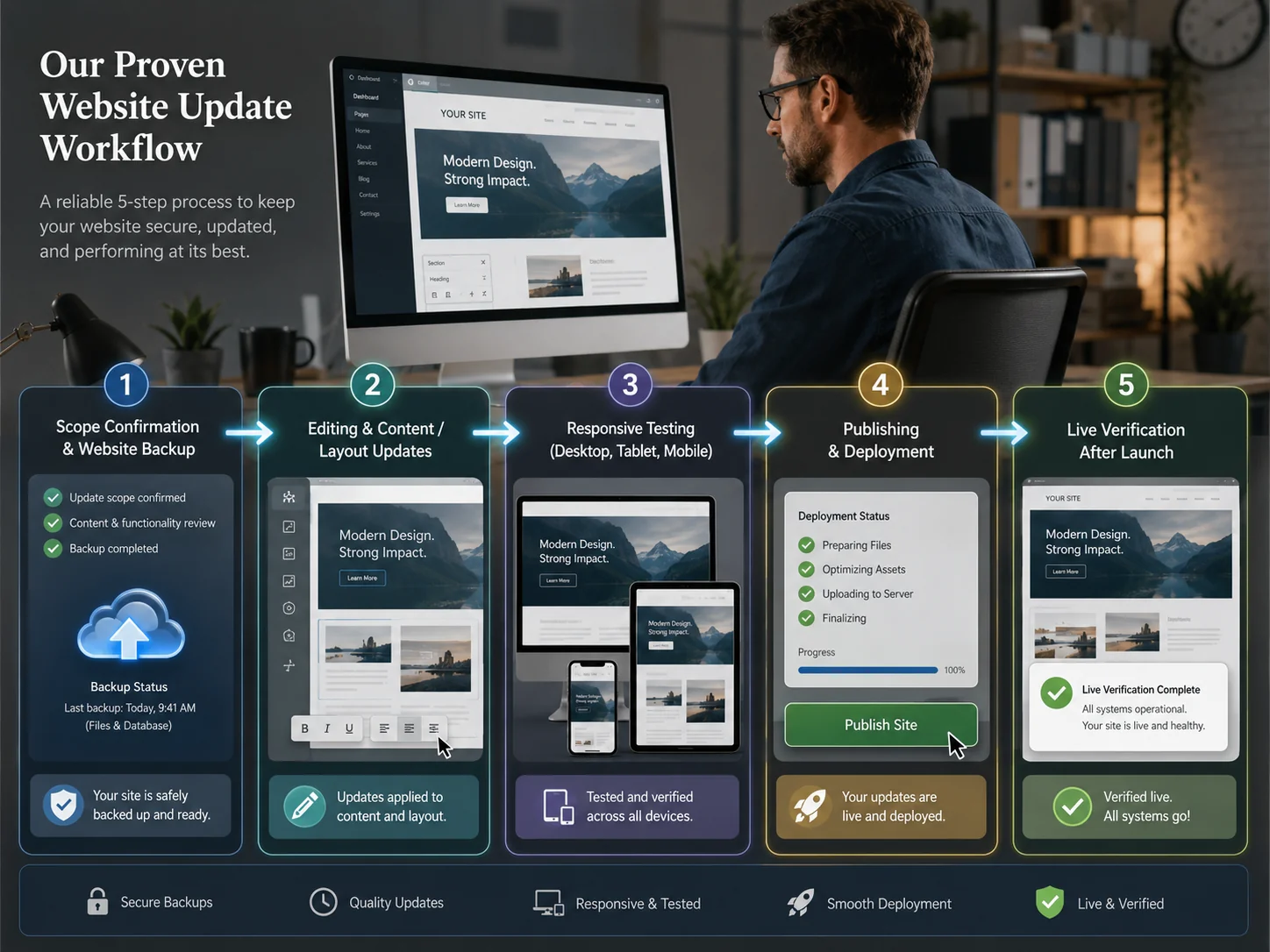
Use this workflow for routine website content changes and adapt it for the platform and level of risk.
Step 1: Define and Locate the Update
Write down:
- What is changing
- Why it is changing
- Which pages or records are affected
- What the final result should be
- Who approved the content
- Whether the update is urgent
- Whether staging is required
Clear scope prevents unrelated changes from being included accidentally. Classify the task as low, medium, or high risk. A text correction is low risk, a shared template change is medium risk, and an update affecting payments, authentication, or a production database is high risk. The classification should determine the backup, staging, approval, and testing requirements.
The next part of the first step is locating the actual source of the visible content.
Determine whether the visible content comes from:
- A static page
- A CMS entry
- A reusable component
- A template
- A theme setting
- A product record
- A navigation menu
- Custom code
- An external integration
Do not edit the visible page until you understand its source. A heading displayed on one page may be controlled by a global template or CMS field used elsewhere.
Step 2: Create and Apply the Update
Use a draft, duplicate, staging site, preview, new branch, revision, or backup depending on the task.
A simple typo may be edited directly with a preview. A template change, plugin update, field restructuring, or code change should usually be tested away from the live site.
Once the safe working version is available, apply the smallest correct change.
Update only what the request requires.
Avoid changing unrelated spacing, copy, styles, or settings while completing a focused task. Extra changes make testing harder and increase the chance of disagreement or regression.
Maintain the website’s established formatting. Use the correct heading level, button style, image treatment, content width, and naming conventions. Avoid pasting formatted text directly from documents when it introduces unexpected fonts, colors, spacing, or hidden markup. Use plain text or the CMS cleaning tools when necessary.
Step 3: Review Connected Content
Check every location that may use the updated field, component, or record.
For a service update, review:
- Service page
- Homepage service list
- Navigation
- Pricing page
- Related services
- Form options
- SEO metadata
- Internal links
For a team update, review the team grid, biography page, author information, contact details, and schema.
Step 4: Test Layouts and Functionality
Review desktop, tablet, and mobile layouts.
Check:
- Text wrapping
- Heading size
- Image crop
- Card height
- Button placement
- Column stacking
- Navigation
- Forms
- Tables
- Popups
CMS content can break a layout when a title, excerpt, image, or button label is longer than the original sample content.
Responsive testing should be followed immediately by functional testing.
Click links and buttons. Submit forms. Test filters, search, pagination, downloads, booking tools, product options, and connected automations.
If a content update changes a form option or service name, confirm that notification routing and CRM values still work.
A professional website fix service can help when an update causes a broken layout, missing content, failed form, or incorrect template behavior.
Step 5: Review Technical Details and Publish
Check the page title, meta description, URL, headings, alt text, internal links, canonical, index settings, and structured data when relevant.
Make sure the updated content remains understandable when read by assistive technology. W3C’s accessibility principles emphasize perceivable content, usable controls, understandable information, and robust implementation.
After the technical review, publish deliberately.
Confirm whether the platform is publishing:
- One record
- One page
- All queued CMS items
- The full site
- A theme change
- A production deployment
Make sure unrelated draft work is not included.
Step 6: Verify and Document the Live Result
Open the production URL in a private browser window.
Confirm that:
- The correct version is live
- The updated content appears
- Related pages remain correct
- Links and forms work
- Mobile layouts remain usable
- No staging URLs appear
- Tracking still records actions
Do not treat a successful publish message as proof that the live website works correctly.
Platform-Specific CMS Updates
The exact editing and publishing process depends on the platform.
WordPress CMS Updates
WordPress websites may use the Block Editor, a page builder, custom fields, widgets, menus, themes, plugins, or custom templates.
Before editing, determine which system controls the content. A homepage may use a builder while blog posts use the Block Editor and services use custom fields.
For content changes, review:
- Page or post status
- Permalink
- Featured image
- Categories and tags
- Revision history
- Template
- Reusable blocks
- SEO plugin fields
- Mobile layout
For software changes, review:
- Core version
- Theme version
- Plugin updates
- Compatibility notices
- PHP requirements
- Backup status
- Staging access
Update one high-risk component at a time when possible, then test forms, navigation, checkout, templates, and important pages.
Webflow CMS Updates
Webflow uses Collections for structured content such as blog posts, authors, services, projects, and locations. Collection pages use a shared template, while Collection lists can display records on static or dynamic pages.
When editing a Collection item, distinguish dynamic fields from static template content. Webflow warns that editing static content on a Collection template can affect every item page, while dynamic content changes with the selected record.
Review:
- Collection item status
- Required fields
- References
- Slug
- Images
- SEO fields
- Conditional visibility
- Collection lists
- Template design
- Publish destination
If a Collection URL changes after publication, redirects may be required to preserve existing links.
Shopify CMS Updates
Shopify combines content management with ecommerce operations.
Business owners may update:
- Products
- Variants
- Prices
- Inventory
- Collections
- Pages
- Blog posts
- Menus
- Policies
- Theme sections
- Search listings
Use extra care with product and checkout-related content because changes can affect orders, availability, discounts, shipping, and customer expectations.
Shopify’s blog post guide explains how editors can manage images, excerpts, authors, visibility, and search listings for articles.
After updating a product, test the product page, variant selection, cart, price, availability, and checkout flow. If the CMS connects to inventory, fulfillment, subscriptions, or a separate source of truth, confirm which system is allowed to overwrite the other. Manual edits can disappear when an automated sync runs later.
SEO, Accessibility, and Performance During CMS Updates
Content updates should improve the page without damaging discoverability, usability, or speed.
SEO checks should confirm that the update remains discoverable and correctly described.
Review:
- SEO title
- Meta description
- H1
- H2 and H3 structure
- URL slug
- Canonical URL
- Robots settings
- Internal links
- Redirects
- Structured data
- Sitemap inclusion
Google’s Search Essentials identify core technical and content practices that help Google discover, index, and understand pages.
Do not change a published URL without a reason and a redirect plan. When updating older content, preserve useful information and improve accuracy rather than changing dates or wording only to make the page appear newer.
Professional SEO support services can help review metadata, content structure, internal links, indexing, and technical SEO during larger CMS projects.
Accessibility checks should confirm that the updated content remains understandable and usable.
Review:
- Heading order
- Descriptive links
- Image alt text
- Form labels
- Button names
- Color contrast
- Keyboard access
- Error messages
- Video captions
W3C recommends providing labels that identify the purpose of form controls. Its official form labels guide explains how labels should be associated with fields, checkboxes, radio buttons, and dropdowns.
Do not use placeholder text as the only field label. Do not use “click here” when a descriptive link can explain the destination.
Performance checks should focus on anything newly added to the page.
New images, videos, embeds, scripts, sliders, and widgets can slow the page.
Before publishing:
- Resize images appropriately
- Compress media
- Use suitable formats
- Avoid unnecessary autoplay video
- Check third-party scripts
- Review layout movement
- Test mobile loading
Google’s Core Web Vitals focus on loading performance, interaction responsiveness, and visual stability.
One content update should not add several megabytes of media or block the page with an unnecessary embed.
How Often Should CMS Updates Be Completed?
The right schedule depends on the website and business activity.
Immediate updates are required when inaccurate or broken content can affect customers, revenue, safety, security, or legal expectations.
Complete updates promptly when they involve:
- Incorrect contact information
- Incorrect prices
- Security warnings
- Broken forms
- Failed checkout
- Incorrect legal or policy information
- Expired promotions
- Removed services
- Staff access changes
Weekly or monthly reviews are appropriate for websites that receive regular leads, bookings, sales, product changes, or new content.
Frequent review is appropriate for websites with regular leads, sales, bookings, products, or publishing.
Review:
- Forms
- Promotions
- Products
- Inventory
- Events
- Blog posts
- Software notices
- Security alerts
- Backups
Quarterly reviews should examine larger content and governance questions rather than only urgent edits.
Use quarterly reviews for larger content and structure questions.
Ask:
- Are services still accurate?
- Does navigation reflect current priorities?
- Are old articles still useful?
- Are important pages easy to edit?
- Are unused plugins or fields creating confusion?
- Are integrations documented?
- Does the website support current goals?
A planned CMS schedule is more reliable than waiting for customers to report errors.
Five CMS Update Mistakes to Avoid
- Editing the visible page without finding the source. Content may come from a CMS record, component, template, menu, theme setting, or integration. Editing the wrong layer can create duplication or fail to change the live content.
- Publishing without reviewing connected pages. One CMS field can appear on a detail page, homepage list, navigation, search result, and related-content section. Test every important display.
- Updating software without a backup. Core, plugin, theme, and integration changes can cause compatibility problems. Create a recovery point and test the most important customer journeys.
- Ignoring mobile content variation. A longer title, new image, wider table, or additional button can break a responsive layout. Review real content across desktop, tablet, and mobile.
- Giving every user administrator access. Use the lowest practical permission level, remove old accounts, and document ownership of hosting, domains, CMS access, and integrations.
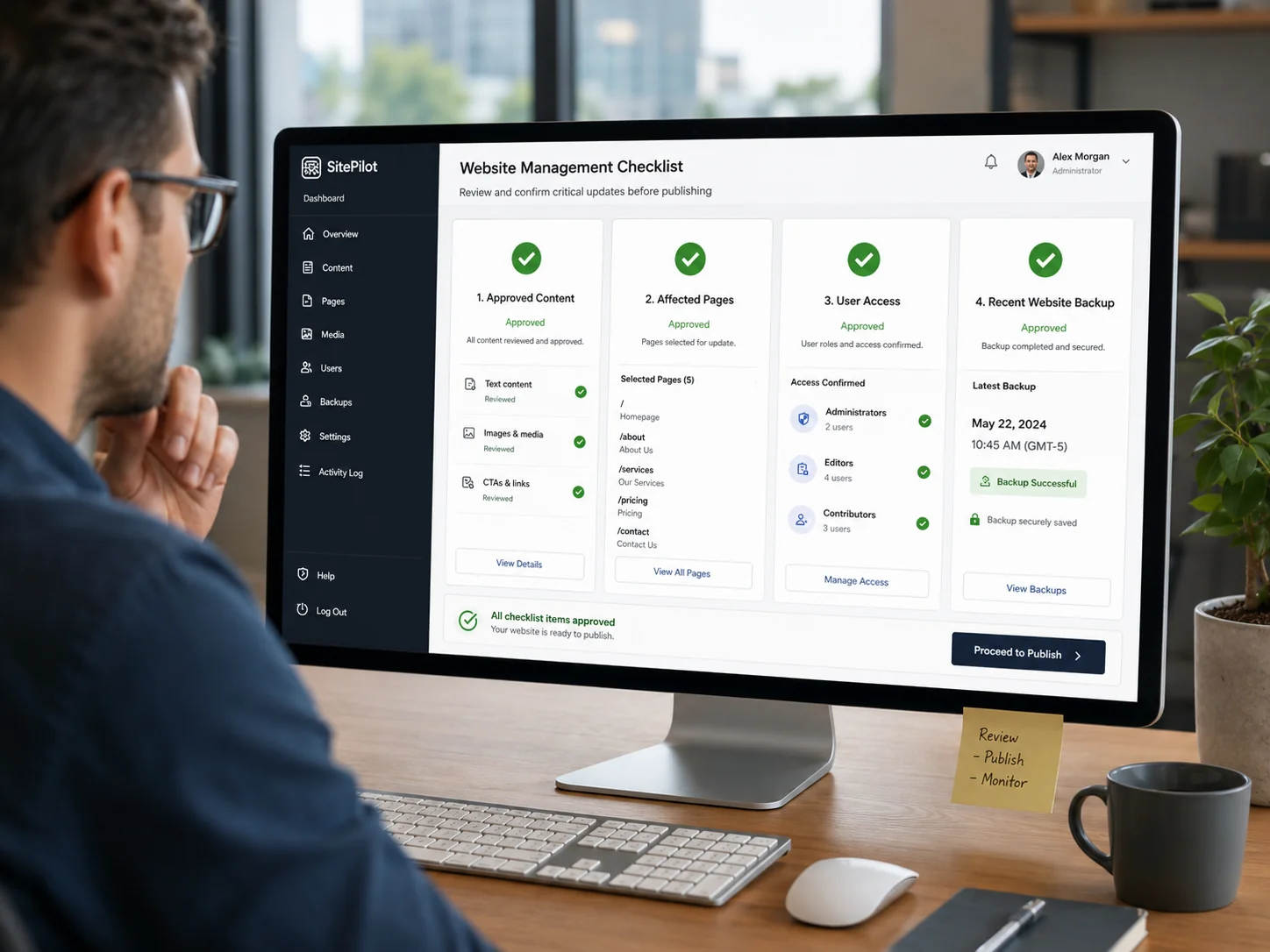
Final CMS Update Checklist
Use this checklist before and after publishing.
Content checks:
- Approved copy is available
- Names and titles are correct
- Prices are current
- Dates are accurate
- Contact information is correct
- Old content is removed where required
- Repeated information is consistent
- No placeholder content remains
CMS structure checks:
- Correct record is being edited
- Required fields are complete
- References are connected
- Categories and tags are correct
- URL slug is intentional
- Template remains correct
- Global components are reviewed
- User permissions are appropriate
Design and function checks:
- Desktop layout works
- Tablet layout works
- Mobile layout works
- Images display clearly
- Links reach correct pages
- Buttons work
- Forms submit
- Notifications arrive
- Search and filters work
- Products or bookings complete
SEO and accessibility checks:
- SEO title is accurate
- Meta description is relevant
- One clear H1 is present
- Headings are organized
- Internal links are descriptive
- Canonical is correct
- Index settings are intentional
- Images have suitable alt text
- Forms have labels
- Keyboard access works
Publishing and recovery checks:
- Backup or revision exists
- Correct environment is selected
- Unrelated work is excluded
- Approval is recorded
- Production URL is tested
- Analytics still records activity
- Rollback method is available
When to Request Professional Help
Many routine CMS changes can be handled internally when the editor understands the platform and can preview or restore the update.
Professional assistance is usually safer when:
- The content source is unclear
- A global template is involved
- Many pages require changes
- The update affects forms or checkout
- A plugin or theme must be updated
- A platform migration is involved
- Custom code controls the content
- URLs or redirects are changing
- The website breaks after publishing
- Staging and live versions differ
- Security or customer data is involved
The right solution should keep the CMS easier to manage after the update rather than adding more one-off fixes. Professional help is also appropriate when the business depends on the website but nobody internally knows who controls the domain, hosting, CMS, forms, analytics, or integrations. Restoring ownership and documenting the system may be as important as the visible edit.
Xander Web Studio provides website services for CMS content, responsive layouts, development, website repairs, landing pages, SEO, and deployments. For code-based projects using repositories and production builds, deployment support can help review preview environments, branches, build errors, and live publishing.
Related Articles
- Website support checklist
- WordPress Webflow guide
- Mobile layout issues
- Pre-publish checklist
- Website form issues
Let’s make your website clearer, stronger, and easier to manage.
Whether you need small updates, better page structure, cleaner content, SEO improvements, or technical help, Xander Web Studio can help you improve your site with practical support.
Frequently Asked Questions
What are CMS updates?
CMS updates are changes made through or to a content management system. They can include content edits such as updating services, images, prices, products, or blog posts. They can also include software changes such as platform, plugin, theme, security, and integration updates.
What is the difference between CMS content and software updates?
Content updates change the information visitors see. Software updates change the system that stores, displays, or processes that information.
Changing a staff biography is a content update. Installing a new WordPress version or plugin release is a software update. Software and structural changes generally require more testing and a stronger backup plan.
Can I complete CMS updates myself?
You can usually handle simple content edits when you know which field controls the content, have the correct access, and can preview or restore the change.
Professional help is safer when the update affects templates, code, plugins, integrations, forms, ecommerce, URLs, databases, or many pages at once.
How often should a CMS be updated?
Critical information and security issues should be updated promptly. Forms, products, events, promotions, and software notices may need weekly or monthly review. A broader audit of content, permissions, plugins, templates, integrations, and website structure is useful every quarter.
The correct frequency depends on how often the business changes and how important the website is to leads, bookings, sales, and customer service.
What should I check after publishing a CMS update?
Open the live production page and confirm that the correct content appears. Test desktop and mobile layouts, links, buttons, forms, search, products, bookings, and connected automations when relevant.
Also review SEO fields, image alt text, analytics, related pages, and any template or component that uses the updated content. Keep the backup or rollback option available until the live website has been verified.