
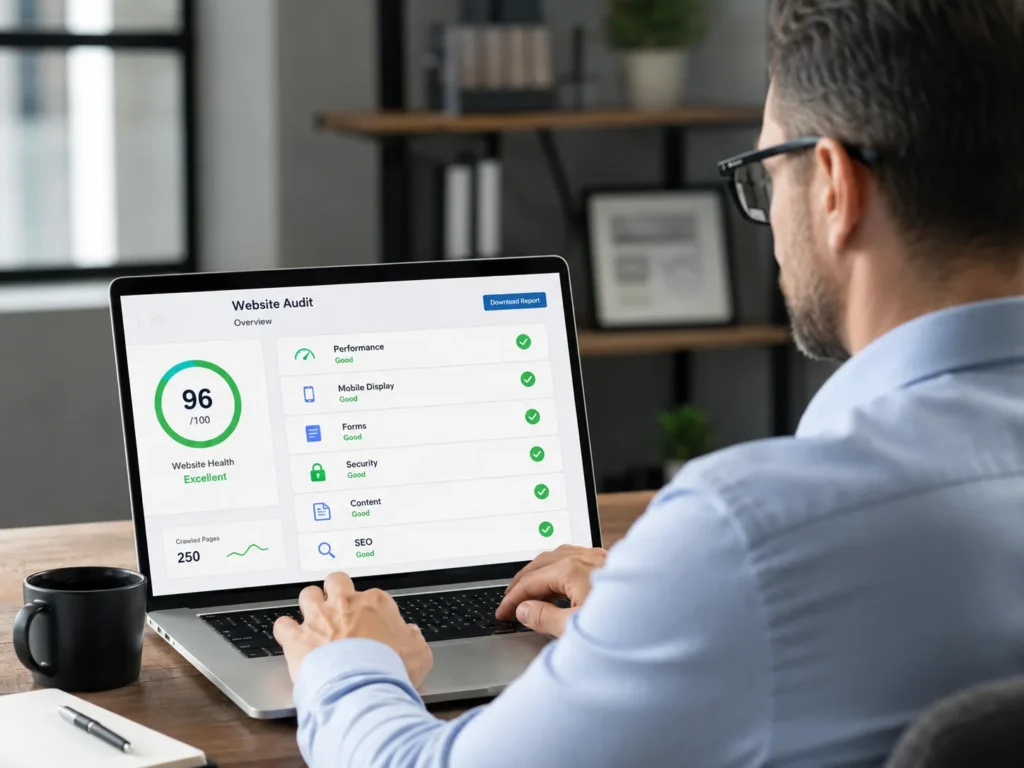
Your website may still be online, but that does not always mean it is working properly. Broken buttons, slow-loading pages, outdated information, mobile layout problems, missing images, and forms that do not submit can gradually reduce the effectiveness of your site.
Some website problems are immediately noticeable. A page may display an error, the navigation menu may disappear, or an important form may stop sending submissions. Other problems develop quietly. Your pages may become slower, search traffic may decline, plugins may become outdated, or visitors may leave because the website is difficult to use on a phone.
A practical website support checklist helps you identify these warning signs before they become larger and more expensive problems. It also helps you decide whether you need a quick repair, regular maintenance, content assistance, search engine optimization, or more extensive development work.
This guide explains how to evaluate your website, recognize common support issues, prioritize important fixes, and determine when professional help may be the safest option.
Key Takeaways
Check the complete customer journey. Do not evaluate only your homepage. Test navigation, service pages, forms, buttons, confirmation messages, contact information, and mobile layouts.
Small errors can indicate larger problems. One broken section may be caused by an outdated plugin, CMS configuration, publishing mistake, code conflict, or failed deployment.
Regular reviews reduce emergency repairs. A scheduled website support checklist makes it easier to identify outdated content, performance issues, broken links, and security concerns before customers encounter them.
Need help reviewing an existing website? Explore professional website support for content updates, page fixes, mobile improvements, form checks, CMS assistance, and technical troubleshooting.
Build a cleaner, stronger website with Xander Web Studio.
Get practical help with your website, from content updates and page improvements to SEO, design cleanup, technical fixes, and launch support.
What Does Website Support Mean?
Website support is the ongoing process of keeping a website accurate, functional, secure, usable, and aligned with the needs of the business.
It can include simple work, such as changing an image or updating business hours. It may also involve more technical tasks, including fixing responsive layouts, troubleshooting forms, reviewing integrations, resolving deployment errors, improving page speed, and repairing code.
Common website support tasks include:
- Updating text, images, pricing, services, and team information
- Fixing broken buttons, links, and navigation menus
- Correcting desktop and mobile layout problems
- Testing contact, appointment, payment, and lead-generation forms
- Updating CMS collections, blog posts, products, and dynamic content
- Reviewing website speed and Core Web Vitals
- Checking plugins, themes, integrations, and dependencies
- Repairing missing pages, redirects, and error messages
- Improving headings, metadata, internal links, and image alt text
- Reviewing security, user access, backups, and software updates
- Checking staging and live website differences
- Troubleshooting GitHub, Vercel, and other deployment workflows
The exact support you need depends on how your website was built. A WordPress website may require plugin, theme, template, and database checks. A Webflow site may need CMS, component, breakpoint, interaction, or publishing support. A custom-coded website may require repository access, code changes, testing, and a new deployment.
You can review the complete range of website services when you are unsure which type of assistance fits your situation.
Why Websites Need Ongoing Attention
A website is not a finished document that remains unchanged after launch. It depends on hosting, software, browsers, devices, third-party services, forms, integrations, scripts, and content that can change over time.
Even when nobody intentionally edits the website, external changes can affect it. Browsers release updates. Plugins and CMS platforms introduce new versions. Embedded tools modify their scripts. APIs change. Security certificates expire. Employees change roles. Services and prices become outdated.
Website maintenance also matters because visitors judge a business based on what they experience. A broken form may prevent a potential customer from requesting a quote. Incorrect pricing can create confusion. An outdated staff page can weaken trust. A mobile menu that does not open may prevent phone users from reaching important pages.
Search visibility may also be affected when pages become difficult to crawl, load slowly, contain outdated information, or provide a poor user experience. Google’s SEO Starter Guide recommends maintaining clear, useful, organized content that search engines and visitors can understand.
Ongoing attention does not mean redesigning the website every month. It means checking important functions regularly and addressing problems before they interfere with customers or business operations.
Website Support Checklist: 15 Warning Signs
Use the following website support checklist to evaluate the current condition of your site.
1. Your Contact Form Is Not Working
A website form is often one of the most important conversion tools on a business website. It may collect consultation requests, quote inquiries, bookings, job applications, newsletter registrations, or customer questions.
A form can appear normal while failing behind the scenes. The submit button may work visually, but the notification email may never arrive. Submissions may be sent to an old email address, blocked by spam filtering, rejected because of domain authentication, or stored only inside the CMS.
Test every form using real information. Confirm that:
- Required fields work correctly
- Error messages are understandable
- The submit button responds
- A success message or thank-you page appears
- The notification reaches the correct recipient
- The customer receives any expected confirmation
- The submission is stored where expected
- Mobile users can complete every field
- Spam protection does not block legitimate inquiries
MDN’s web forms guide explains that form functionality includes structure, validation, controls, and submission behavior—not merely the way a form looks.
When forms do not work consistently, professional website repair service may be needed to review the form configuration, email delivery, scripts, embeds, integrations, or page template.
2. Important Buttons Lead to the Wrong Place
Every important call-to-action button should take visitors to the expected destination. Common examples include:
- Request a Quote
- Book a Call
- View Pricing
- Contact Us
- Buy Now
- Download the Guide
- Learn More
- Start Your Application
Buttons sometimes retain links from old pages, staging environments, previous campaigns, or duplicated templates. A button may lead to a deleted page, reload the current page, open an unrelated service, or contain no link at all.
Click every primary button on desktop and mobile. Check the header, hero section, service cards, pricing area, footer, popups, and repeated CTA sections.
Buttons connected to phone numbers and email addresses should also be tested. A telephone link should open the device’s calling application, while an email link should use the correct address.
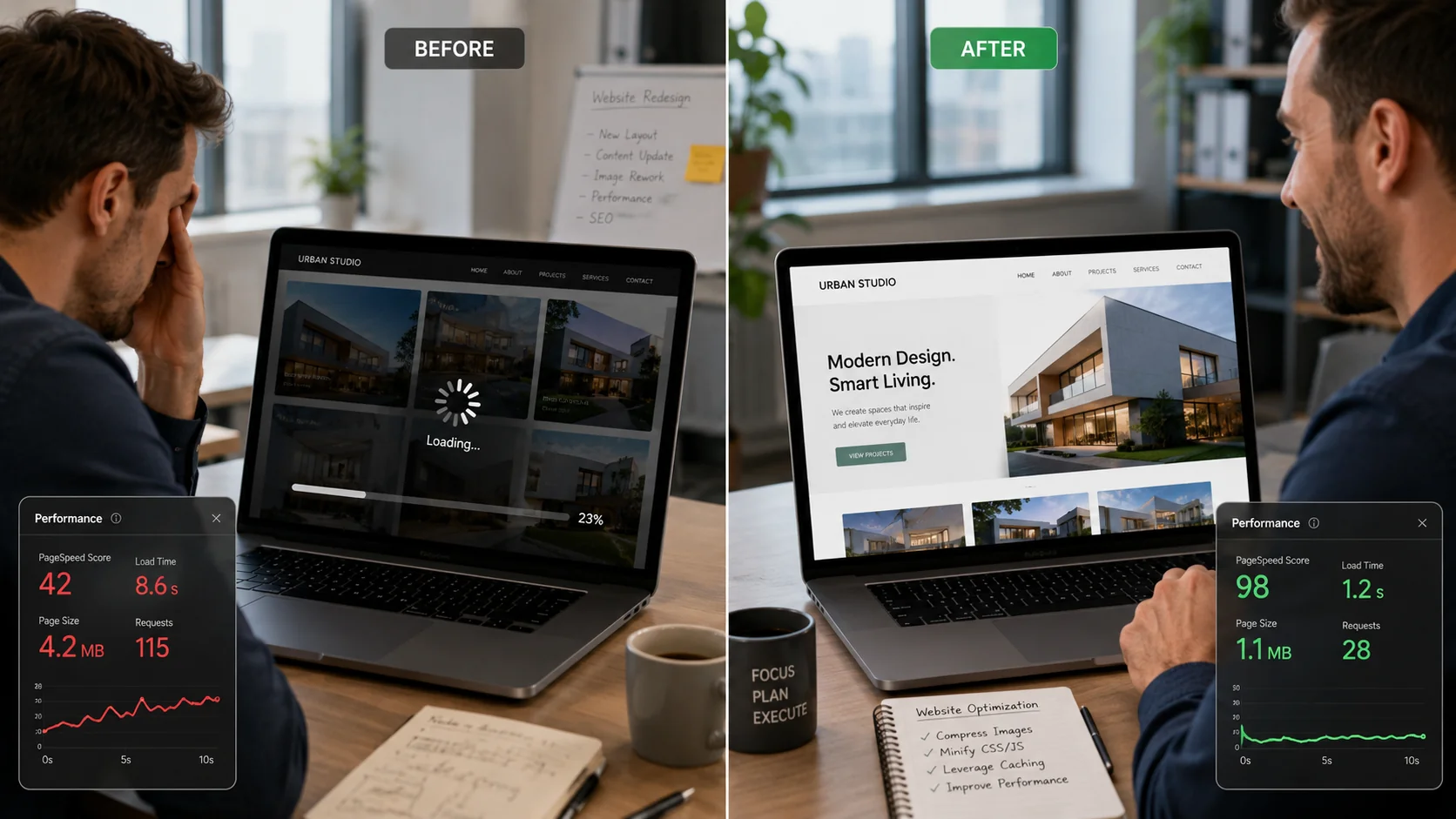
3. Pages Load Slowly
Slow pages do not always appear completely broken. They may eventually load, but visitors can become frustrated while waiting for a hero image, menu, form, or main content section to appear.
Performance problems may be caused by:
- Oversized images
- Uncompressed video
- Too many scripts
- Heavy animation
- Unused plugins
- Poor hosting
- Missing caching
- Third-party embeds
- Large fonts or files
- Inefficient code
- Database problems
- Excessive tracking scripts
Google’s Core Web Vitals guidance focuses on loading performance, responsiveness, and visual stability as important parts of the user experience.
You can begin with PageSpeed Insights to review performance data and identify possible improvements. However, a score should not be treated as the only measurement of website quality. Test the actual website on multiple devices and internet connections as well.
4. The Mobile Version Looks Broken
A website can look professional on a laptop and still be difficult to use on a phone. Mobile issues are especially common after adding new content, changing section widths, uploading larger images, or copying desktop components.
Check for:
- Text extending outside the screen
- Images being cropped incorrectly
- Buttons that are too small
- Buttons that overlap
- Large blank spaces
- Sections appearing in the wrong order
- Navigation menus that do not open
- Popups that cannot be closed
- Forms that require horizontal scrolling
- Headings that are too large
- Tables that overflow
- Sticky elements covering content
Test more than one page. A homepage may be responsive while a blog post, pricing table, service page, or form has problems.
Do not rely only on resizing your desktop browser. Whenever possible, test with a real phone or tablet. Different browsers and operating systems may render elements differently.
5. The Website Works in One Browser Only
A website should be tested across commonly used browsers. A layout that works in Chrome may behave differently in Safari, Firefox, or Edge, particularly when it uses custom scripts, animations, forms, or newer CSS features.
Mozilla’s cross-browser testing guidance recommends evaluating compatibility and debugging issues that appear across different browser environments.
You may need website support when:
- A menu opens in one browser but not another
- Fonts fail to load
- Videos do not play
- Forms cannot be submitted
- Animations freeze the page
- Grid layouts change unexpectedly
- Buttons have different spacing
- Embedded tools remain blank
- A page displays only a loading indicator
Record the browser name, device type, page URL, and steps that reproduce the problem. This information makes troubleshooting more efficient.
6. Your Content Is Outdated
Outdated content can make an active business appear neglected. Review all visible information, including:
- Business hours
- Phone numbers
- Email addresses
- Office locations
- Team members
- Service descriptions
- Pricing
- Product availability
- Promotions
- Certifications
- Policies
- Statistics
- Copyright dates
- Event information
- Client logos
- Portfolio examples
Content may also become outdated when the business changes its positioning. A website created for one audience may no longer reflect the customers you serve today.
Routine CMS update support can help maintain service pages, team profiles, blog posts, product information, collections, menus, and other structured website content.
7. Updating Content Feels Risky
A content management system should make routine changes manageable. You should not feel that one text edit could destroy an entire page.
Support may be necessary when:
- You do not know which page controls the visible content
- The editor looks different from the live website
- One component appears across many pages
- You are unsure whether an edit affects a template
- The website uses custom fields you do not understand
- The preview does not match the published version
- You cannot restore a previous revision
- You do not have the correct access level
- You are afraid to publish an update
This is common with websites that combine templates, global components, CMS collections, page builders, custom code, and third-party tools.
A support specialist can identify how the content is connected and choose the safest editing method. In some situations, the update should first be completed on staging and reviewed before it is published.
8. Images Are Missing, Blurry, or Distorted
Image problems can make a professionally designed page look unfinished.
Common issues include:
- Broken image icons
- Low-resolution photos
- Stretched logos
- Incorrect aspect ratios
- Cropped faces or products
- Large files that slow the page
- Missing mobile images
- Empty CMS image fields
- Incorrect image paths
- Missing alternative text
Before replacing an image, determine how the current image is being displayed. A background image, CMS thumbnail, responsive image, featured image, and inline image may require different dimensions.
Uploading the largest available file is not always the best solution. Images should be appropriately sized, compressed, and exported in a suitable format.
9. Navigation Has Become Confusing
Navigation should help visitors understand where they are and where they can go next. Over time, menus can become crowded as new services, resources, locations, and pages are added.
Warning signs include:
- Too many top-level links
- Duplicate menu labels
- Dropdowns that are difficult to use
- Important pages hidden several levels deep
- Inconsistent mobile navigation
- Links pointing to old pages
- Missing active states
- A logo that does not return home
- Different menus across similar pages
- Important services absent from navigation
Navigation changes should be completed carefully because menus may be global. One change can affect every page.
Larger navigation or page-structure improvements may require web development help rather than a small content update.
10. You Regularly Find Broken Links
Broken links interrupt the visitor journey and can make information difficult to access. They commonly appear after:
- Deleting a page
- Changing a URL
- Replacing a PDF
- Migrating a website
- Renaming a service
- Copying a section
- Changing domains
- Removing an external resource
Check links in the header, footer, buttons, body content, blog posts, downloadable resources, author profiles, and image captions.
When a page moves, an appropriate redirect may be needed. Do not redirect every missing page to the homepage without reviewing its original purpose. A relevant replacement page usually creates a better experience.
11. Search Traffic or Rankings Decline
A decline in organic visibility does not automatically mean the website is broken. Search performance can change because of competition, seasonality, content quality, technical problems, indexing issues, tracking errors, or changes in search behavior.
Begin by reviewing:
- Whether analytics is still collecting data
- Whether Search Console reports indexing problems
- Whether important pages are still indexable
- Whether titles or content were recently changed
- Whether URLs were moved without redirects
- Whether the site has new error pages
- Whether mobile performance has declined
- Whether competitors now provide stronger content
- Whether important internal links were removed
Google Search Console can help website owners understand how Google crawls, indexes, and displays their pages. Its official Search Console guide describes how the platform can be used to monitor search performance.
Google Analytics also provides a traffic acquisition report for understanding where website visitors originate.
For content structure, metadata, internal linking, and search visibility improvements, review professional SEO support services.
12. The Website Displays Security Warnings
Security warnings require prompt attention. Visitors should not see messages indicating that the connection is unsafe, the certificate is invalid, or the website may contain harmful content.
Other warning signs include:
- Unknown administrator accounts
- Unexpected redirects
- Spam pages appearing in search
- Unfamiliar files or plugins
- Changed homepage content
- A sudden increase in login attempts
- Forms sending spam
- Customers reporting suspicious messages
- Hosting notifications about malware
- Browser warnings
- Disabled security tools
Do not ignore a security concern because the homepage still appears normal. Review administrator access, passwords, software versions, backups, hosting reports, and connected services.
CISA’s Secure Our World guidance recommends strong passwords, password managers, multifactor authentication, software updates, and phishing awareness as foundational security practices.
Cloudflare also provides a detailed website security checklist covering areas such as authentication, encryption, third-party risks, bots, and availability.
13. Plugins, Themes, or Dependencies Are Outdated
Websites built on software platforms need regular updates. WordPress sites may rely on the core platform, themes, and plugins. Custom applications may use packages and frameworks maintained through a code repository.
Updates can provide:
- Security fixes
- Bug repairs
- Compatibility improvements
- Performance enhancements
- New functionality
- Support for updated browsers or APIs
Updates should still be handled carefully. A plugin or dependency change can affect layouts, templates, forms, checkout processes, integrations, or custom code.
For WordPress, review the official maintenance guide and make sure a reliable backup exists before major changes.
The official backup guide recommends treating website files and the database as a consistent backup set.
14. Staging and Live Versions Do Not Match
Staging gives teams a safer place to prepare and review changes before publishing them. However, staging can introduce confusion when it is unclear which environment contains the newest version.
Common problems include:
- An update exists on staging but not live
- Live content was edited after staging was created
- Different environment variables are used
- A form works on staging but fails live
- Images use staging URLs
- A deployment includes old code
- The wrong Git branch is connected
- CMS content differs between environments
- Cache prevents new changes from appearing
- A preview deployment is mistaken for production
Before publishing, document what changed and which files, pages, CMS records, or settings are involved. After publishing, test the actual live URLs instead of assuming the deployment succeeded.
For modern code-based websites, deployment support can help with GitHub repositories, Vercel deployments, staging reviews, build errors, branches, and live website verification.
15. Your Website No Longer Supports the Business
A technically functional website may still need support when it no longer reflects the direction of the company.
Examples include:
- You offer new services that are missing
- The site attracts the wrong audience
- Visitors cannot understand your main offer
- There is no clear path to contact you
- Campaigns require new landing pages
- Your team cannot update content efficiently
- The website does not support lead tracking
- Your current pages cannot display new information
- The design feels inconsistent with your brand
- Competitors provide a much clearer experience
In these situations, the solution may involve more than repairing errors. You may need new sections, improved messaging, CMS restructuring, conversion improvements, or a focused campaign page.
A dedicated landing page service can be useful when a specific offer, audience, promotion, advertisement, or lead-generation campaign needs its own page.
A Step-by-Step Website Support Review
You do not need to evaluate every technical detail during your first review. Start with the pages and functions that matter most to customers.
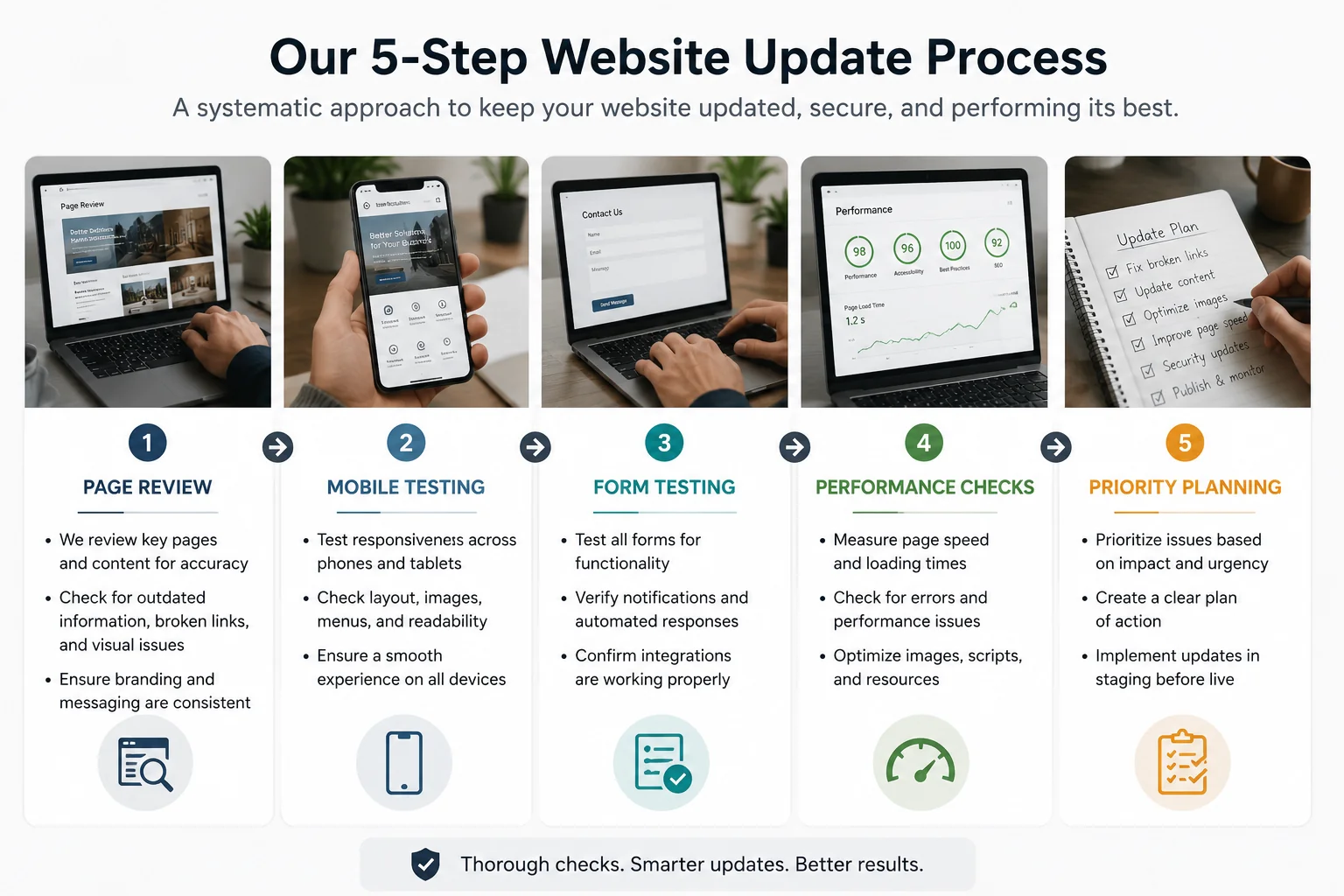
Step 1: List Your Important Pages
Create a list of the pages that directly support your business. These may include:
- Homepage
- Primary service pages
- Pricing page
- Contact page
- Booking page
- Checkout page
- Lead-generation landing pages
- Location pages
- Blog archive
- High-traffic articles
- Customer login page
- Thank-you pages
Do not begin with obscure pages unless there is a known issue. Start with the website journeys most likely to affect trust, leads, sales, or customer service.
Step 2: Review Each Page Visually
Open every priority page on desktop and mobile.
Look for:
- Missing content
- Inconsistent fonts
- Incorrect spacing
- Overlapping elements
- Low-quality images
- Blank sections
- Outdated information
- Broken embeds
- Unclear calls to action
- Unexpected popups
- Misaligned buttons
Take screenshots of every problem and record the exact page URL. Visual evidence makes it easier to compare before and after results.
Step 3: Test Interactive Elements
Click menus, buttons, tabs, accordions, sliders, videos, popups, and forms.
Test the full process instead of stopping after the first click. For example, a booking button may open the calendar correctly, but the final confirmation may fail. A checkout page may accept product selections but produce an error during payment.
Step 4: Check Mobile and Browser Compatibility
Repeat your most important actions on a phone. Test at least one additional browser, especially when the site uses animations, custom code, or embedded applications.
Accessibility should also be considered during the review. W3C provides practical accessibility checks for beginning an evaluation, while noting that automated tools alone cannot confirm complete accessibility.
Basic checks include:
- Navigating with a keyboard
- Reviewing color contrast
- Checking visible focus indicators
- Confirming that images have useful alt text
- Making sure fields have labels
- Checking headings in a logical order
- Ensuring content remains usable when enlarged
Step 5: Review Performance and Availability
Use performance tools, but also observe the website naturally.
Ask:
- Does the main content appear quickly?
- Do buttons respond immediately?
- Does the layout move while loading?
- Are videos preventing other content from appearing?
- Does the page become unresponsive?
- Does the website occasionally go offline?
Cloudflare’s guidance on preventing website downtime notes that detecting downtime through monitoring is an important first step in responding to availability problems.
Step 6: Check Content and SEO Elements
Review each priority page for:
- One clear main topic
- A descriptive page title
- A logical H1
- Organized H2 and H3 headings
- Useful internal links
- Accurate information
- Descriptive image alt text
- A clear next action
- A relevant meta description
- No accidental duplicate content
- No placeholder copy
- No staging references
SEO improvements should help people understand and use the page. Avoid forcing the same keyword into every paragraph.
Step 7: Review Access and Backups
Confirm who controls:
- Domain registration
- Website hosting
- CMS administration
- Analytics
- Search Console
- Form platform
- Email delivery
- GitHub repository
- Deployment platform
- CDN or firewall
- Booking system
- Payment processor
Remove unnecessary former users and make sure the business owns or can recover its primary accounts.
Confirm that backups exist and that someone understands how they would be restored. A backup is more useful when its location, frequency, contents, and restoration process are known.
Step 8: Prioritize the Problems
Not every issue has the same urgency. Divide findings into three groups.
Urgent problems
- Website is offline
- Security warning appears
- Checkout is failing
- Contact forms are not delivering
- Important pages return errors
- Customers cannot log in
- Business information is dangerously incorrect
High-priority problems
- Mobile navigation is broken
- Important buttons lead to wrong pages
- Pages are extremely slow
- Search engines cannot index important content
- Major service information is outdated
- Lead tracking has stopped
Routine improvements
- Minor spacing inconsistencies
- Older photos
- Small content changes
- New internal links
- Metadata updates
- Blog formatting
- Nonessential animation adjustments
This prioritization prevents cosmetic requests from delaying issues that directly affect customers, revenue, or security.
When Can You Fix a Website Problem Yourself?
Some website updates can be completed internally when the task is simple, access is available, and the person making the change understands how the page is structured.
You may be able to handle the task yourself when:
- You are correcting a small typo
- You are replacing text in a standard CMS field
- You are uploading an image with known dimensions
- You are updating business hours
- You are adding a normal blog post
- You know how to preview and restore the change
- The platform provides a safe revision history
- The update does not affect shared templates
Even a small change should be previewed before publishing. Check both desktop and mobile after the update.
Avoid experimenting directly on the live site when you are unsure how a component works. A global component, template, symbol, collection, or reusable block may affect many pages at once.
When Should You Request Professional Support?
Professional support is usually the safer choice when the problem:
- Affects leads, payments, appointments, or customer access
- Requires code changes
- Involves a live deployment
- Appears across several pages
- Returns after being fixed
- Involves plugins or integrations
- Requires DNS or hosting changes
- May be security-related
- Affects a shared template
- Requires database work
- Has no clear cause
- Could cause content loss
- Needs testing across environments
- Must be completed without interrupting the live website
You should also consider outside support when website work regularly distracts you from operating the business. Spending several hours trying to make one small layout change may cost more than assigning it to someone familiar with the platform.
About the studio explains the careful, review-based approach used by Xander Web Studio for website updates, troubleshooting, CMS work, SEO, and deployment assistance.
What Should Website Support Include?
A reliable support process should include more than applying the visible change.
A Clear Review
The person completing the work should understand:
- What is wrong
- Which page is affected
- What the expected result should be
- Whether similar pages are affected
- Which platform or template controls the page
- Whether staging is available
- What access is required
A Safe Update Method
The update should be completed in a way that reduces unnecessary risk. Depending on the task, that may involve:
- Creating a backup
- Working on staging
- Duplicating a page
- Using version control
- Creating a new branch
- Saving the existing code
- Recording original settings
- Testing a single item first
Functional Testing
After the visible problem is repaired, related functions should be checked. A form styling change should not prevent submission. A mobile menu adjustment should not break desktop navigation. A plugin update should not change the checkout process.
Responsive Review
Important updates should be checked on desktop, tablet, and mobile breakpoints. Even when a request concerns only the desktop view, the same code or component may affect smaller screens.
Final Verification
The live website should be checked after publishing or deployment. A successful save, publish message, or deployment status does not guarantee that every page is working as expected.
How Often Should You Use This Checklist?
The right schedule depends on the size and importance of the website.
Weekly Checks
Weekly checks are appropriate for websites that receive frequent inquiries, sales, bookings, or content updates.
Review:
- Forms and leads
- Checkout or booking flow
- Uptime
- Important promotions
- New content
- Analytics tracking
- Security alerts
Monthly Checks
Most small business websites benefit from a broader monthly review.
Check:
- Priority pages
- Mobile layout
- Forms and buttons
- Broken links
- Software updates
- Backups
- Page speed
- Search performance
- Business information
- User access
Quarterly Checks
A quarterly review can examine larger strategic concerns.
Evaluate:
- Whether services have changed
- Whether the website attracts the correct audience
- Whether high-value pages need stronger content
- Whether navigation remains clear
- Whether new landing pages are needed
- Whether old pages should be updated or removed
- Whether website tools still match business needs
After Every Major Change
Complete a focused review after:
- Redesigning the website
- Migrating hosting
- Changing domains
- Installing a major plugin
- Adding a new integration
- Rebuilding navigation
- Launching a campaign
- Changing checkout systems
- Updating a theme
- Deploying a large code change
The more important the change, the more important it is to test the full customer journey.
Common Website Support Mistakes to Avoid
1. Checking Only the Homepage
The homepage may look correct while deeper pages contain outdated content, broken forms, incorrect templates, or mobile problems. Test important service and conversion pages separately.
2. Assuming a Published Change Is Complete
Always open the live URL after publishing. Check the page in a private browser window and verify desktop and mobile results.
3. Updating Without a Backup
Major updates, migrations, theme changes, and plugin changes should not begin without an appropriate recovery option.
4. Making Several Changes at Once
When many plugins, scripts, or code sections are changed simultaneously, identifying the cause of a new problem becomes more difficult. Apply and test changes in manageable stages.
5. Ignoring Minor Problems for Too Long
A minor spacing issue can remain low priority, but broken buttons, outdated services, failed forms, and software warnings should not be treated as cosmetic concerns.
Create a Simple Website Issue Report
When requesting support, provide enough information for the problem to be reproduced.
Include:
- Website URL
- Exact page URL
- Description of the issue
- Expected result
- Screenshot or screen recording
- Device type
- Browser name
- Date the issue was noticed
- Whether it happens consistently
- Recent website changes
- Relevant login or access details sent securely
A useful report might say:
The contact form on the services page displays a success message, but no notification reaches our business email. I tested it on Chrome and Edge using a Windows computer on July 12. The form worked before we changed the recipient address last week.
This is more actionable than saying, “The website is not working.”
Choosing the Right Type of Website Support
Different problems require different services.
Choose general website support for recurring content changes, layout updates, mobile checks, page reviews, and ongoing assistance.
Choose website fixes for broken sections, buttons, forms, links, templates, headers, footers, and responsive issues.
Choose CMS support for WordPress, Webflow, Shopify, Wix, or other structured content updates.
Choose development support when you need new page sections, front-end functionality, custom layouts, or larger structural improvements.
Choose SEO support when the main concern involves metadata, headings, internal linking, content quality, indexing, or search performance.
Choose deployment support when the website uses GitHub, Vercel, staging environments, branches, builds, or code-based publishing.
You can compare available options and support pricing before submitting a request.
Final Website Support Checklist
Before deciding that your website is working properly, confirm the following:
- The website loads without security warnings
- Important pages return normally
- Navigation works on desktop and mobile
- Contact information is accurate
- Forms submit successfully
- Notifications reach the correct inbox
- Buttons lead to the correct destinations
- Images display clearly
- Content is current
- Mobile sections do not overlap
- Pages work in major browsers
- Important pages load at a reasonable speed
- Analytics is collecting data
- Search Console shows no critical issues
- Plugins, themes, and dependencies are reviewed
- Backups are available
- Administrator access is current
- Staging and live environments are understood
- Important customer journeys have been tested
- High-priority problems have clear owners
A website does not need to be visibly offline before it needs help. Repeated small errors, difficult updates, declining performance, outdated content, and unreliable forms are all signs that support may be necessary.
Using this website support checklist regularly can help you catch problems earlier, protect customer trust, and keep your website aligned with the needs of your business.
To request an evaluation, contact Xander with your website link, screenshots, and a description of the updates or problems you have noticed. You can also visit Xander Web Studio to review website support, development, CMS, SEO, landing page, and deployment services.
Related Website Services
Let’s make your website clearer, stronger, and easier to manage.
Whether you need small updates, better page structure, cleaner content, SEO improvements, or technical help, Xander Web Studio can help you improve your site with practical support.
Frequently Asked Questions
What is a website support checklist?
A website support checklist is a structured list of pages, functions, content, and technical elements that should be reviewed to confirm that a website is working properly. It commonly includes forms, navigation, buttons, mobile layouts, page speed, content accuracy, security, backups, software updates, analytics, and search performance.
Using a checklist helps business owners identify problems consistently instead of waiting for a customer to report them.
How do I know whether my website needs support?
Your website may need support when forms stop sending notifications, pages load slowly, mobile layouts break, information becomes outdated, buttons lead to incorrect pages, software warnings appear, or updates become difficult to complete safely.
You may also need support when the website no longer represents your services, attracts the wrong audience, or cannot support new campaigns and business requirements.
How often should a business website be checked?
Important forms, checkout processes, bookings, and lead-generation pages should be checked frequently. A broader website review can usually be completed monthly, with a more strategic content and structure review every quarter.
The website should also be tested after major updates, migrations, redesigns, plugin changes, integrations, or deployments.
Can I maintain my website myself?
You can handle routine website maintenance when you understand the platform, have the correct access, know how to preview changes, and have a reliable way to restore the website.
Professional help is safer when a task involves code, security, integrations, databases, shared templates, failed deployments, payment systems, or problems that directly affect customers and revenue.
What information should I provide when requesting website support?
Provide the website URL, exact page link, a clear description of the problem, screenshots or a recording, the device and browser used, and the result you expected.
Mention any recent edits, updates, deployments, plugin changes, or integrations that may be related. Clear information makes it easier to reproduce the issue, determine its cause, and complete the correct repair.