
Choosing a website platform is not only about how the website looks when it launches. Small businesses also need to consider what happens afterward.
Someone must update services, change prices, publish blog posts, test forms, manage users, monitor website performance, and fix anything that stops working. The time and technical knowledge required for these tasks can vary significantly between platforms.
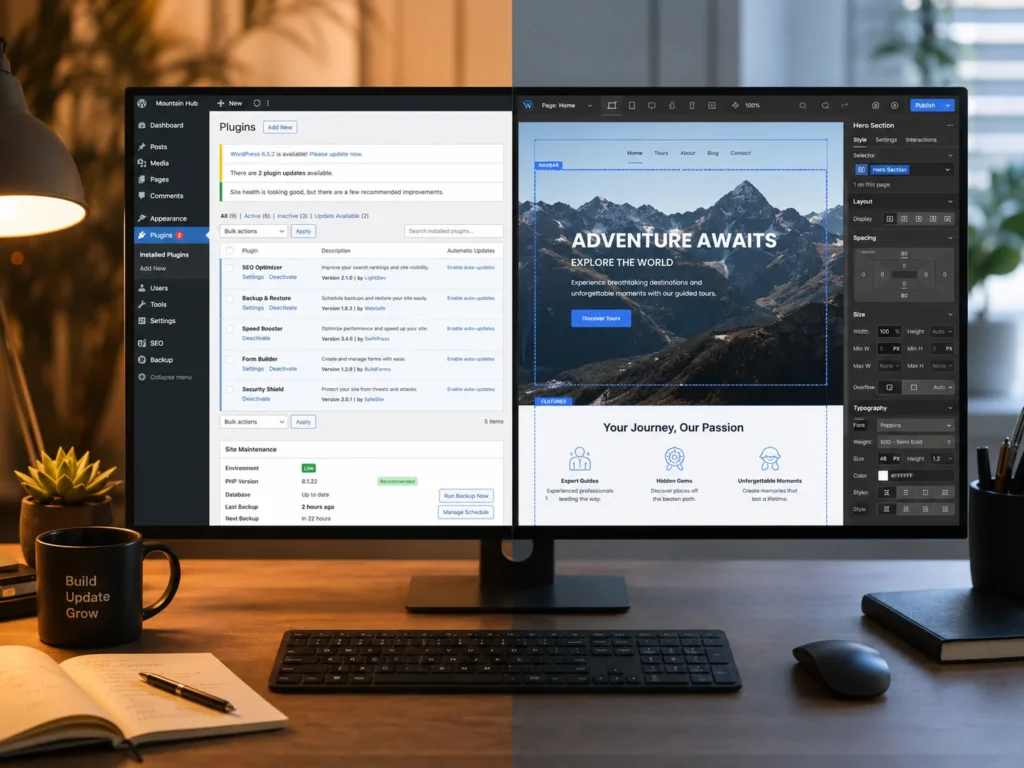
WordPress and Webflow can both support professional small business websites, but they approach website management differently.
WordPress provides extensive flexibility through themes, plugins, hosting providers, page builders, and custom development. That flexibility can make it suitable for websites with specific functionality or complex content requirements. It can also introduce more areas that require ongoing attention.
Webflow combines visual website building, content management, hosting, and publishing within one platform. This can reduce the number of separate systems a small business must manage, although custom layouts, CMS structures, scripts, and integrations can still require professional assistance.
So, which platform is easier to maintain?
For many small businesses with straightforward marketing websites, Webflow is usually easier to maintain because the platform manages more of the underlying software and hosting environment. WordPress may be the better long-term choice when the business needs greater flexibility, specialized plugins, advanced functionality, or more control over its hosting and website files.
The right answer depends on what the website needs, who will maintain it, and how frequently the business expects it to change.
Build a cleaner, stronger website with Xander Web Studio.
Get practical help with your website, from content updates and page improvements to SEO, design cleanup, technical fixes, and launch support.
Key Takeaways
Webflow generally requires less software maintenance. Small business owners do not normally need to manage separate core, plugin, theme, or hosting updates within the standard Webflow environment.
WordPress provides more flexibility. Its large ecosystem of themes, plugins, developers, and hosting options can support a wider range of custom requirements.
Content editing depends on how the website was built. A well-organized WordPress or Webflow site can be easy to update. A poorly structured site on either platform can be confusing.
WordPress maintenance varies significantly. A simple block-based website may be manageable, while a site with many plugins, a complex page builder, custom code, and multiple integrations may require regular technical support.
Webflow is not maintenance-free. Forms, CMS content, responsive layouts, custom scripts, third-party tools, SEO settings, and live publishing still need to be reviewed.
Businesses that need help maintaining either platform can explore professional website support for content updates, layout corrections, form testing, responsive improvements, and technical troubleshooting.
The Quick Answer
Webflow is typically easier to maintain for a small business that wants:
- A marketing website
- A manageable number of pages
- Built-in hosting and publishing
- Fewer software updates
- Visual page editing
- A structured CMS
- Limited custom functionality
- A smaller number of third-party tools
WordPress is often a better choice for a small business that needs:
- Specialized functionality
- A large plugin ecosystem
- Advanced blogging
- Membership features
- Complex forms
- Ecommerce flexibility
- Control over hosting
- Custom database functionality
- Greater platform portability
- A large pool of available developers
The platform itself is only one part of the decision. Maintenance also depends on the quality of the original build.
A WordPress website with carefully selected plugins and a clear editing system may be easier to maintain than an overly complex Webflow project. Likewise, a well-structured Webflow website may be much easier to manage than a WordPress site assembled from several page builders and unsupported plugins.
WordPress vs Webflow Maintenance Comparison
| Maintenance Area | WordPress | Webflow |
|---|---|---|
| Platform updates | Core updates require review | Managed by Webflow |
| Plugins | Often required | No traditional plugin system |
| Themes | May require updates | Design managed inside project |
| Hosting | Selected and managed separately | Usually included with Site plan |
| Backups | Depends on host or backup tool | Automatic site backups |
| Content editing | Depends on theme or builder | Visual editor and CMS |
| Customization | Extensive options | Strong visual control |
| Security | Shared between owner, host, and tools | Platform infrastructure managed |
| Forms | Plugins or external tools often used | Built-in forms available |
| SEO controls | Core tools plus plugins | Built-in page settings |
| Performance | Depends on hosting, theme, plugins, and code | Managed hosting, but design still matters |
| Troubleshooting | More possible conflict points | Fewer platform components |
| Developer availability | Very large community | Growing specialist community |
| Hosting control | High | More centralized |
| Routine maintenance | Usually higher | Usually lower |
This table is a general comparison. The actual maintenance burden depends on the design, integrations, custom code, content volume, and people responsible for the website.
What Website Maintenance Includes
Website maintenance involves more than updating software.
For a small business website, regular maintenance may include:
- Updating services and prices
- Changing business hours
- Publishing blog posts
- Replacing images
- Adding team members
- Testing contact forms
- Reviewing lead notifications
- Fixing mobile layouts
- Checking broken links
- Updating navigation
- Monitoring page speed
- Reviewing security warnings
- Managing user accounts
- Creating backups
- Checking analytics
- Reviewing search performance
- Updating integrations
- Testing bookings or payments
Your platform affects how these tasks are completed, but both WordPress and Webflow still need regular attention.
A website can remain online while containing outdated information, broken buttons, failed forms, missing images, or incorrect mobile layouts. Your website support checklist can help identify these warning signs before choosing which maintenance tasks to prioritize.
How WordPress Maintenance Works
WordPress is open-source website software that can be installed on many different hosting providers. This provides small businesses with significant control over where the website is hosted and how it is configured.
However, that control also means several parts of the website may need to be managed separately.
A typical WordPress website can include:
- WordPress core
- A hosting provider
- A theme
- A child theme
- A page builder
- Several plugins
- Form software
- Caching tools
- Security tools
- Backup tools
- Analytics scripts
- Custom code
- External integrations
Each component may be maintained by a different company or developer.
WordPress Core Updates
WordPress regularly releases updates that may contain bug fixes, security improvements, new functionality, and compatibility changes.
Some updates can be installed automatically. Others may require a manual review.
The official WordPress update guide recommends backing up the website before updating. This is important because an update can affect a theme, plugin, custom feature, or hosting configuration.
After updating WordPress, test:
- The homepage
- Navigation
- Forms
- Service pages
- Blog templates
- Checkout
- Customer accounts
- Mobile layouts
- Custom features
A successful update message does not guarantee that every part of the website still works correctly.
Plugin Updates
Plugins add functionality to WordPress.
They may control:
- Contact forms
- SEO settings
- Ecommerce
- Security
- Backups
- Page building
- Memberships
- Events
- Bookings
- Image optimization
- Caching
- Redirects
- Analytics
Plugins are one of WordPress’s greatest advantages because they allow businesses to add functionality without developing everything from the beginning.
They can also increase the maintenance burden.
A plugin may become:
- Outdated
- Unsupported
- Incompatible
- Vulnerable
- Unnecessary
- Duplicated by another plugin
- In conflict with the theme
- In conflict with another plugin
WordPress provides an option for plugin auto-updates, but automatic updates should still be combined with reliable backups and regular testing.
Applying every plugin update automatically without reviewing the site can create problems when an update changes existing functionality.
Theme Updates
The WordPress theme controls some or all of the website’s design and templates.
A theme update can affect:
- Headers
- Footers
- Navigation
- Fonts
- Page templates
- Blog layouts
- Mobile styles
- WooCommerce templates
- Custom code
Custom modifications should generally be separated from the main theme through a child theme or another safe development method. Otherwise, a theme update may overwrite previous changes.
Page-builder websites may also depend on separate builder updates and add-ons.
Hosting Maintenance
WordPress requires web hosting.
The hosting provider may manage:
- Server availability
- PHP versions
- SSL certificates
- Database access
- Backups
- Caching
- Security scanning
- Domain connections
- Email delivery
- Staging environments
Managed WordPress hosting can reduce the technical workload by handling more of these responsibilities.
Lower-cost shared hosting may require the website owner or developer to manage more tasks independently.
Two WordPress sites can therefore have very different maintenance requirements even when they use the same CMS.
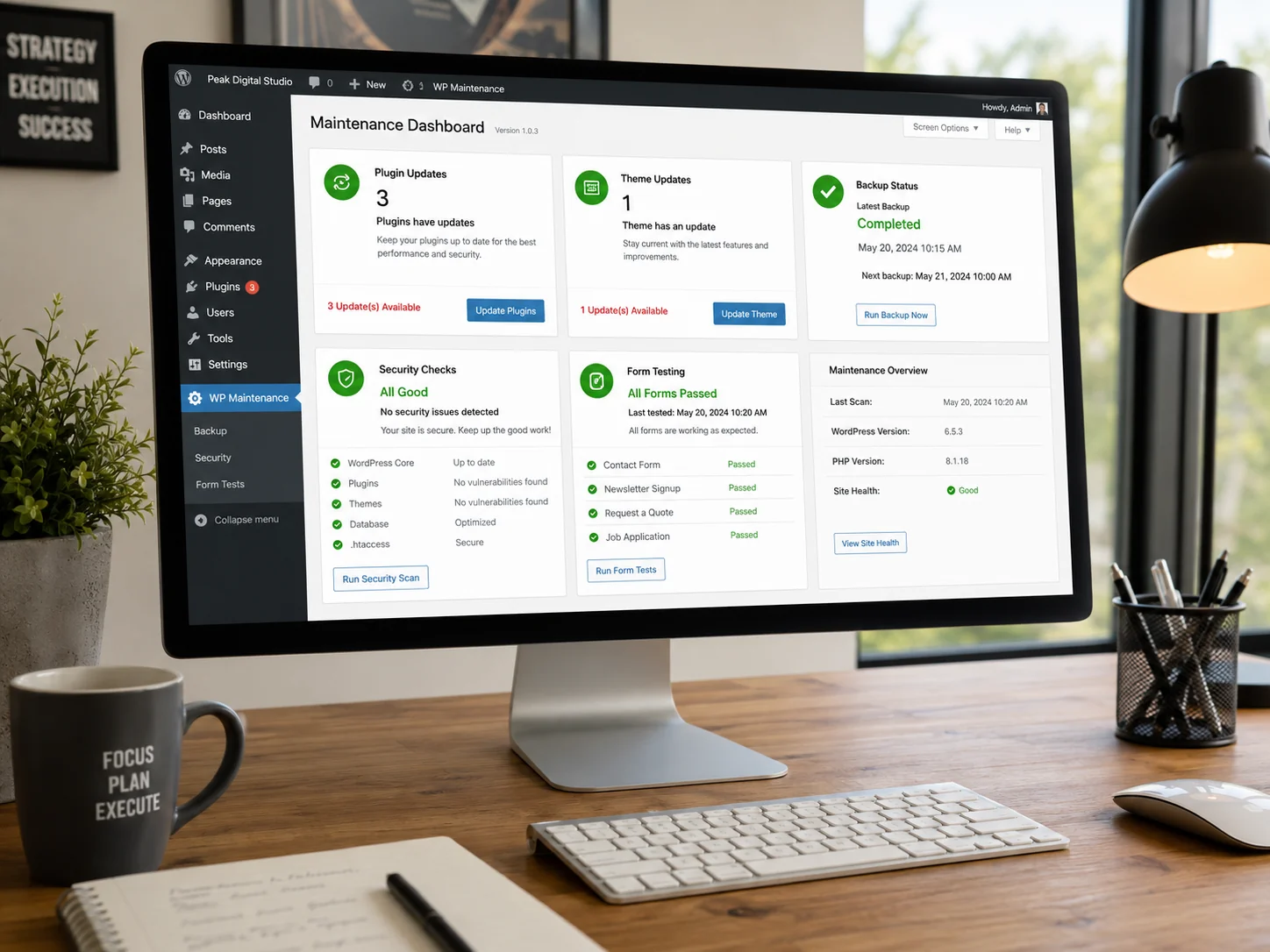
WordPress Backups
WordPress backups are not identical across every website.
Backups may be provided through:
- The hosting provider
- A WordPress plugin
- A security service
- A manual export
- An external storage service
The official backup guidance recommends backing up the database regularly and before major upgrades or migrations.
A complete recovery may require both the database and the website files.
Small businesses should know:
- How often backups are created
- Where backups are stored
- How long they are retained
- Whether files and databases are included
- Who can access them
- How a restoration would work
Seeing a backup plugin in the dashboard does not confirm that recent, usable backups exist.
How Webflow Maintenance Works
Webflow is a hosted visual website platform. Design, CMS content, publishing, and standard hosting are managed within the Webflow environment.
For many small businesses, this reduces the number of systems involved in routine maintenance.
There is no traditional WordPress-style plugin directory, and users do not normally update Webflow’s core platform or hosting software.
However, the website itself still needs maintenance.
A Webflow project may include:
- Static pages
- CMS collections
- Components
- Variables
- Responsive breakpoints
- Forms
- Interactions
- Animations
- Custom code
- External scripts
- Third-party applications
- Analytics
- Marketing integrations
- Redirects
- SEO settings
Webflow Platform Updates
Webflow manages updates to its main platform and standard hosting infrastructure.
The business does not normally need to install Webflow core updates, update a theme, or review a list of traditional plugins.
This removes several common WordPress maintenance tasks.
However, platform changes can still affect workflows, interfaces, or advanced functionality. A person maintaining the website should stay familiar with the Webflow dashboard and review important pages after major project changes.
Visual Editing
Webflow provides a visual design environment that allows users to edit layouts while seeing the structure of the page.
This can be useful for:
- Adjusting spacing
- Replacing images
- Editing sections
- Updating typography
- Creating responsive layouts
- Managing reusable components
- Publishing changes
Visual editing does not automatically make every task simple.
Webflow uses concepts similar to front-end development, including:
- Classes
- Display settings
- Positioning
- Flexbox
- Grid
- Breakpoints
- Overflow
- Relative sizing
- Components
A user unfamiliar with these concepts can unintentionally create inconsistent classes, duplicate styles, or responsive problems.
A well-built Webflow website should provide clear reusable styles and components instead of requiring the business owner to redesign sections during routine updates.
Webflow Components
Components allow repeated elements to be maintained consistently.
They may be used for:
- Navigation
- Footers
- CTA sections
- Testimonials
- Service cards
- Banners
- Contact sections
Changes made to the main component can affect every connected instance across the website.
This is efficient, but it also means one incorrect change can appear on many pages.
Before editing a component, determine whether the update should affect:
- Every instance
- One page
- One component property
- One responsive breakpoint
This is particularly important for navigation menus, sitewide CTAs, and footer information.
Webflow CMS Updates
Webflow CMS collections can manage:
- Blog posts
- Team members
- Services
- Locations
- Case studies
- Testimonials
- Projects
- Resources
- Events
A properly configured CMS can make recurring content updates straightforward.
Instead of redesigning a page, the editor completes fields such as:
- Title
- Description
- Image
- Author
- Category
- Date
- URL slug
- SEO title
- Meta description
The CMS template then determines how the information appears.
Problems can arise when:
- Fields are unclear
- Required fields are missing
- Collection templates are poorly designed
- Images use inconsistent dimensions
- Conditional visibility is misconfigured
- Reference fields are disconnected
- Collection limits are reached
- Slugs are changed without redirects
Professional CMS update support can help maintain structured content without damaging shared templates.
Webflow Backups
Webflow automatically creates backups while users work on a site.
The official Webflow backup guide explains how users can create backup points and restore previous versions. Backup availability can depend on the website plan and user permissions.
This built-in system can make visual changes easier to recover than on a WordPress site without a reliable backup configuration.
However, restoring a full Webflow backup may also restore other website elements to an earlier state. It should not be treated as a replacement for careful editing and testing.
For important CMS content, teams may also export collection data for additional records or migration purposes.
Webflow Publishing
Changes inside the Designer or CMS do not necessarily become live immediately. They must be published to the selected domain.
This separation can help users review changes before publishing, but it can also cause confusion.
Common publishing issues include:
- Changes saved but not published
- Changes published only to staging
- The wrong domain selected
- CMS items remaining in draft
- Old content remaining because of caching
- Custom code not working after publishing
- A page accidentally set to draft
- Different domains showing different versions
Webflow’s page draft guide explains that saving a previously published page as a draft can remove it from the live website after the next publish.
Always verify the live production URL after publishing.
Which Is Easier for Content Updates?
The answer depends on how the site was built.
WordPress Content Editing
WordPress can use several editing systems:
- Block Editor
- Classic Editor
- Elementor
- Divi
- WPBakery
- Beaver Builder
- Custom fields
- Theme settings
- Custom templates
This variety can be helpful when the editor matches the needs of the business.
It can also be confusing when different pages use different systems.
For example:
- Blog posts may use the Block Editor
- The homepage may use Elementor
- The header may be controlled by the theme
- Services may use custom fields
- The footer may use widgets
- Forms may use a separate plugin
A small business owner may need to learn several interfaces to manage one website.
Webflow Content Editing
Webflow can provide a more consistent editing experience when content is organized through CMS collections and components.
A content editor may be able to update text, images, blog posts, team members, and services without changing the design system.
However, editing layouts in the Designer requires more understanding than completing CMS fields.
Webflow is easier for content updates when:
- The CMS is structured correctly
- Fields are clearly named
- Components are reusable
- The business has documented instructions
- Editors avoid changing the core design
WordPress is easier for content updates when:
- The editor is consistent
- Plugins are limited
- The theme is well supported
- Custom fields are clearly labeled
- The dashboard is not overloaded
Winner for content updates: Webflow has a slight advantage for a structured marketing site, but either platform can be easy when the build is organized properly.
Which Is Easier for Software Updates?
Webflow is generally easier in this category.
WordPress site owners must account for:
- Core updates
- Plugin updates
- Theme updates
- PHP compatibility
- Hosting configuration
- Page-builder updates
- Integration compatibility
Webflow manages its platform software centrally. The business still needs to maintain custom code and third-party tools, but there are fewer individual software components to update.
Winner for software updates: Webflow.
Which Is Easier for Backups?
Webflow provides built-in project backups, which simplifies recovery for many small business websites.
WordPress backup quality depends on the hosting provider, plugins, configuration, and storage plan.
A well-managed WordPress host may provide excellent automatic backups and one-click restoration. A poorly configured WordPress site may have no usable backup at all.
Winner for backups: Webflow by default, although managed WordPress hosting can provide a comparable experience.
Which Is Easier for Security?
Security is a shared responsibility on both platforms.
WordPress Security
WordPress security can involve:
- Hosting security
- Core updates
- Plugin updates
- Theme updates
- Administrator accounts
- Passwords
- Multifactor authentication
- Firewalls
- Malware scanning
- Backups
- Form protection
Because WordPress supports many third-party plugins and hosting environments, the quality of security depends heavily on the website’s configuration and maintenance practices.
CISA’s software update guidance recommends installing updates to address known software risks.
Webflow Security
Webflow manages the primary hosted platform and standard infrastructure.
This reduces the need for small businesses to manage:
- Server software
- CMS core updates
- Traditional plugin updates
- Theme files
- Database administration
Businesses must still protect:
- Webflow accounts
- Workspace permissions
- Domain accounts
- Form data
- Custom scripts
- External applications
- Marketing integrations
- Analytics accounts
A compromised administrator account can still cause serious damage even when the platform infrastructure is managed.
Winner for routine security maintenance: Webflow.
Winner for security control and custom configuration: WordPress.
Which Is Easier for Website Design Changes?
Webflow provides strong visual control over layouts and responsive behavior.
Designers can directly manage:
- Spacing
- Typography
- Grid
- Flexbox
- Breakpoints
- Positioning
- Interactions
- Components
This can make Webflow efficient for visual design changes without creating or editing a traditional theme.
WordPress design changes depend on the theme and builder.
A small change may be simple in Elementor or the Block Editor. It may also require:
- CSS
- PHP template changes
- Theme settings
- Plugin settings
- Child-theme files
- Custom fields
Webflow is often easier for designers who understand CSS concepts.
WordPress may be easier for users who already know a specific page builder and need prebuilt themes or components.
Winner for visual control: Webflow.
Winner for theme and builder selection: WordPress.
Larger design or functionality updates may require web development support on either platform.
Which Is Easier for Forms?
Both platforms can support contact forms, quote forms, booking forms, and lead-generation forms.
WordPress Forms
WordPress commonly uses form plugins.
These can support:
- Conditional fields
- File uploads
- Payments
- Surveys
- CRM integrations
- Email automation
- User registration
- Multi-step forms
The tradeoff is additional maintenance.
A form plugin may require:
- Updates
- License renewal
- Spam configuration
- Email-delivery setup
- Integration testing
- Database management
Webflow Forms
Webflow provides built-in forms for standard lead collection.
Forms can also be connected to:
- Email platforms
- CRM systems
- Automation tools
- Webhooks
- Custom applications
Custom requirements may need external tools or custom code.
Regardless of platform, forms should be tested regularly. A form can show a success message while notifications or CRM records fail behind the scenes.
Your guide to small business updates includes a complete process for testing forms, buttons, integrations, mobile layouts, and customer journeys.
Winner for basic forms: Webflow.
Winner for advanced form options: WordPress.
Which Is Easier for SEO?
Both platforms can support strong search optimization.
The platform does not automatically create high rankings. Search performance also depends on:
- Content quality
- Search intent
- Page structure
- Website speed
- Internal linking
- Mobile usability
- Backlinks
- Technical configuration
- Competition
Google’s SEO Starter Guide recommends creating useful, organized content that helps visitors and search engines understand the website.
WordPress SEO
WordPress includes basic search-friendly features and supports SEO plugins for additional control.
SEO plugins can help manage:
- Page titles
- Meta descriptions
- Canonical tags
- XML sitemaps
- Structured data
- Indexing settings
- Social sharing
- Redirects
These tools are powerful, but they add another plugin that must be updated and configured.
Webflow SEO
Webflow provides page-level controls for important SEO settings.
The official Webflow SEO settings allow users to manage SEO titles and meta descriptions for static and CMS pages.
Webflow also supports:
- Canonical settings
- Redirects
- Sitemaps
- Robots controls
- Open Graph settings
- Schema markup
- Image alt text
Winner for built-in simplicity: Webflow.
Winner for plugin options and extensibility: WordPress.
Businesses that need assistance with content structure, metadata, indexing, internal links, and technical improvements can review professional SEO support services.
Which Is Easier for Website Performance?
Either platform can produce a fast or slow website.
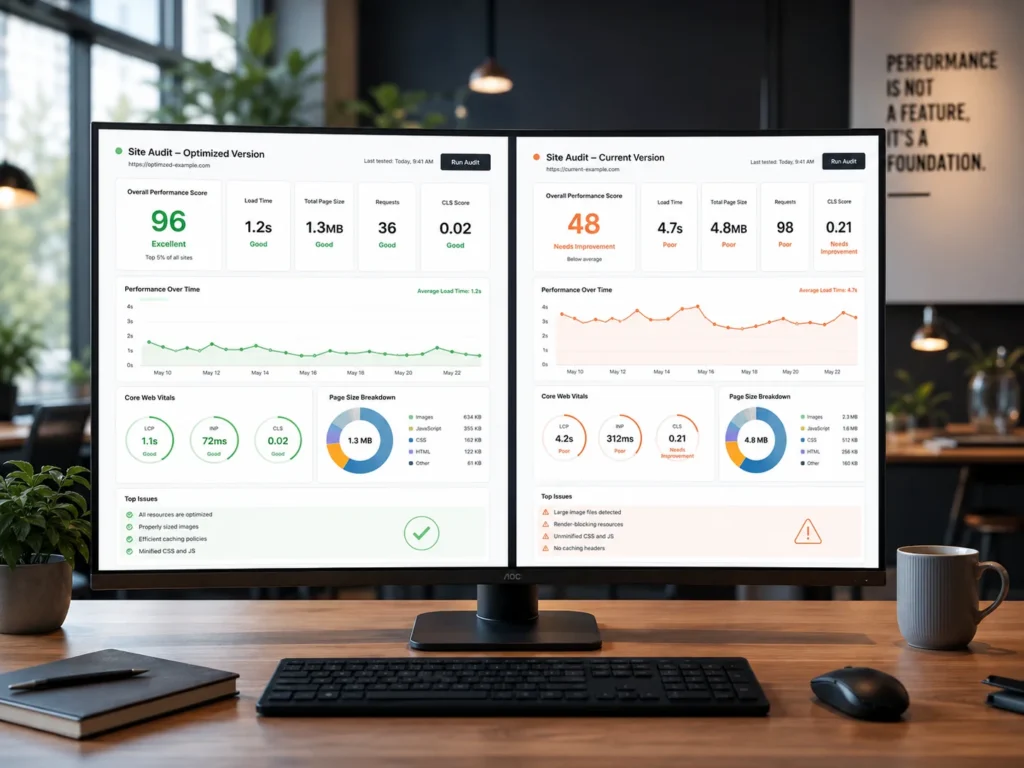
Google’s Core Web Vitals focus on loading performance, interaction responsiveness, and layout stability.
WordPress Performance
WordPress performance may depend on:
- Hosting quality
- Theme quality
- Number of plugins
- Page builder
- Image optimization
- Caching
- Database size
- External scripts
- Custom code
A lightweight WordPress website on strong hosting can perform very well.
A site with many plugins, large images, several tracking scripts, and a heavy page builder may become slow.
Webflow Performance
Webflow’s managed hosting removes several server-level decisions.
However, a Webflow website can still become slow because of:
- Large images
- Background videos
- Excessive animation
- Third-party scripts
- Embedded applications
- Large font files
- Complex page structures
- Too many interactions
Use PageSpeed Insights to identify possible performance issues, but also test the website on real devices and connections.
Winner for predictable infrastructure: Webflow.
Winner for advanced performance control: WordPress.
Which Is Easier for Accessibility?
Accessibility depends more on the design and implementation than on the platform.
Both WordPress and Webflow can create accessible websites, and both can create inaccessible websites.
Important areas include:
- Heading order
- Keyboard navigation
- Color contrast
- Form labels
- Focus indicators
- Image alt text
- Link descriptions
- Video captions
- Error messages
- Responsive zoom
W3C provides practical accessibility checks for beginning a website review. Automated testing tools can help identify certain issues, but they cannot confirm complete accessibility by themselves.
WordPress themes and plugins may introduce accessibility problems if they are not built carefully.
Webflow gives designers direct control over many attributes, but that control requires the designer to apply accessibility practices consistently.
Winner: Tie. The result depends on the people building and maintaining the website.
Which Platform Costs Less to Maintain?
There is no universal answer.
WordPress Costs
WordPress expenses may include:
- Hosting
- Domain
- Premium theme
- Page builder
- Plugin licenses
- Security tools
- Backup service
- Developer support
- Maintenance plan
A simple WordPress site can have relatively low platform costs.
A complex site with many premium tools may require several renewals and more support time.
Webflow Costs
Webflow expenses may include:
- Site plan
- Workspace plan
- Additional users
- Ecommerce features
- Localization
- Third-party tools
- Developer support
Webflow may have fewer separate software renewals, but businesses must choose a plan that supports their CMS, traffic, editors, and required functionality.
The most important calculation is not only the monthly platform price.
Consider:
- Staff time
- Developer time
- Frequency of repairs
- Software renewals
- Hosting support
- Publishing workflow
- Downtime risk
- Training requirements
A platform that costs slightly more each month may be less expensive overall if it requires fewer technical updates and support hours.
Review current website pricing when comparing professional support for either platform.
Which Platform Is Better for Blogging?
WordPress began as a publishing platform and remains a strong choice for content-heavy websites.
It can support:
- Large blog archives
- Categories
- Tags
- Authors
- Editorial plugins
- Advanced search
- Related-post systems
- Custom post types
- Complex content workflows
Webflow CMS can also support professional blogs, resources, case studies, and news sections.
Webflow may be easier when:
- The blog structure is relatively simple
- The design is highly customized
- Editors use consistent CMS fields
- The site has a manageable content volume
WordPress may be better when:
- Publishing is a core business activity
- The site needs advanced editorial workflows
- The content structure is complex
- Many authors require different permissions
- Plugins provide important publishing features
Winner for advanced publishing: WordPress.
Winner for visually controlled marketing content: Webflow.
Which Platform Is Better for Landing Pages?
Both platforms can create effective landing pages.
Webflow is often preferred for highly customized visual designs, responsive layouts, and animations.
WordPress may be preferred when the landing page must connect with existing plugins, forms, ecommerce, memberships, or other website functionality.
The platform matters less than:
- Clear messaging
- Strong visual hierarchy
- Mobile usability
- Fast loading
- Focused CTA
- Reliable form
- Accurate tracking
A dedicated landing page service can help create a focused campaign page without overcrowding the main website.
Which Platform Is Easier to Troubleshoot?
WordPress often has more possible sources of a technical problem.
A broken feature may involve:
- Plugin conflict
- Theme conflict
- Hosting
- PHP version
- Caching
- Database
- Page builder
- Custom code
- Security setting
- Email configuration
Troubleshooting may require disabling tools individually, reviewing error logs, checking staging, and testing compatibility.
Webflow problems are more commonly connected to:
- Layout settings
- Classes
- Components
- Breakpoints
- CMS fields
- Publishing
- Custom code
- External scripts
- Integrations
Webflow usually has fewer platform components, but complex custom code and third-party integrations can still require development support.
Winner for fewer conflict points: Webflow.
Winner for wider community resources and specialists: WordPress.
For broken layouts, forms, buttons, templates, or other technical issues, professional website fix services can help identify the cause before changes are applied.
When WordPress Is Easier to Maintain
WordPress may be easier for your business when:
- Your team already knows WordPress
- You have reliable managed hosting
- The website uses a limited set of supported plugins
- The site has a clear editing system
- You need specialized functionality
- You need advanced publishing tools
- You want control over hosting
- You have an established developer
- Your business depends on WordPress-specific integrations
- Your current workflow already works well
Changing platforms only to reduce maintenance may not be worthwhile when the current WordPress website is stable, documented, backed up, and supported.
When Webflow Is Easier to Maintain
Webflow may be easier when:
- The website is primarily used for marketing
- The site has a manageable number of CMS collections
- You want fewer software updates
- You prefer managed hosting
- Visual consistency is important
- Your team needs structured content editing
- You want built-in project backups
- The site does not require many specialized plugins
- Your designer already works in Webflow
- You prefer one main platform for design and publishing
Webflow is particularly suitable when a business wants a custom visual website without managing a traditional theme and plugin ecosystem.
Should You Move From WordPress to Webflow?
Do not migrate only because Webflow is generally easier to maintain.
A migration can involve:
- Rebuilding pages
- Moving blog content
- Recreating forms
- Replacing plugins
- Updating links
- Creating redirects
- Transferring SEO metadata
- Reconnecting analytics
- Rebuilding integrations
- Testing mobile layouts
- Changing editing workflows
Consider moving when the current WordPress website:
- Requires frequent plugin repairs
- Uses an unsupported theme
- Is difficult for the team to edit
- Has many unnecessary plugins
- Needs a complete redesign
- Has unreliable hosting
- Depends mainly on simple marketing content
- Requires regular visual updates
Remain on WordPress when:
- The website uses critical WordPress plugins
- The blog is large or complex
- The business needs advanced functionality
- The current website is stable
- The team understands the platform
- Migration costs outweigh the maintenance benefits
A platform migration should solve a documented business problem rather than follow a general trend.
Should You Move From Webflow to WordPress?
A move to WordPress may make sense when:
- The business needs functionality Webflow cannot easily support
- Plugin-based tools would reduce custom development
- The website requires advanced publishing workflows
- Hosting control is important
- The business needs custom database behavior
- The current Webflow plan no longer fits the website
- Integrations require extensive workarounds
However, migrating to WordPress will also introduce software, hosting, plugin, and backup decisions that may not currently exist.
A Maintenance Checklist for Either Platform
Regardless of your platform, complete the following checks regularly.
Weekly Checks
- Test important forms
- Confirm lead notifications
- Check bookings or checkout
- Review security warnings
- Verify active promotions
- Confirm the website is available
Monthly Checks
- Review services and pricing
- Test mobile navigation
- Check important buttons
- Review software updates
- Confirm backups
- Check broken links
- Review website speed
- Check analytics
- Review user accounts
Quarterly Checks
- Audit older content
- Review search performance
- Evaluate navigation
- Test browser compatibility
- Review integrations
- Check accessibility
- Confirm business information
- Review high-traffic pages
After Major Updates
- Test desktop layout
- Test mobile layout
- Submit forms
- Check integrations
- Review analytics
- Verify SEO settings
- Check production URLs
- Confirm no unrelated pages changed
Common Platform Selection Mistakes
Choosing Based Only on Initial Price
The cheapest initial option may require more maintenance, repairs, software renewals, or staff time later.
Compare total ownership rather than only the launch cost.
Assuming Webflow Needs No Maintenance
Webflow removes several software-management tasks, but the website still requires content, form, mobile, SEO, performance, integration, and publishing checks.
Installing Too Many WordPress Plugins
Plugins should solve specific needs.
Adding several tools that perform similar functions can increase conflicts, security concerns, and maintenance time.
Ignoring the Editor Experience
A website is harder to maintain when the business cannot confidently update its own routine content.
Ask the developer to demonstrate the editing process before approving the final build.
Skipping Documentation
Document:
- User accounts
- Hosting
- Forms
- CMS fields
- Plugins
- Integrations
- Publishing
- Backups
- Analytics
- Domain access
Documentation becomes especially important when employees, agencies, or developers change.
Choosing Without Considering Growth
A five-page website and a large content platform may need different systems.
Consider what the website may require during the next two or three years.
Final Verdict: WordPress or Webflow?
Webflow is generally easier to maintain for a typical small business marketing website.
It removes much of the responsibility for core software, traditional plugins, themes, hosting infrastructure, and default backup configuration. This can reduce the number of technical decisions and potential conflict points.
WordPress remains the more flexible option.
It is often better for businesses that need specialized functionality, advanced publishing, plugin integrations, hosting control, or custom development.
Choose Webflow when simplicity, visual control, managed hosting, and lower routine software maintenance are the main priorities.
Choose WordPress when flexibility, functionality, ownership control, and access to a large plugin and developer ecosystem are more important.
Most importantly, choose a platform that matches the skills of the person who will maintain it.
A properly structured and documented website on either platform will be easier to manage than a poorly organized website built with the supposedly simpler tool.
To discuss which platform is more suitable for your business, visit Xander Web Studio, review available website services, or contact Xander with your current website, required functionality, and maintenance concerns.
You can also learn about the studio and its approach to WordPress, Webflow, CMS updates, website fixes, development, SEO, and ongoing support.
Related Website Resources
- Small business updates
- Website support checklist
- Website support
- CMS update support
- Website fix services
- Web development support
- SEO support services
- Deployment support
- Website pricing
Let’s make your website clearer, stronger, and easier to manage.
Whether you need small updates, better page structure, cleaner content, SEO improvements, or technical help, Xander Web Studio can help you improve your site with practical support.
Frequently Asked Questions
Is WordPress or Webflow easier for a small business?
Webflow is generally easier for a small business that needs a standard marketing website and wants fewer software, hosting, and plugin maintenance tasks.
WordPress may be easier when the business already has WordPress experience or requires specialized features that can be added through established plugins.
Does Webflow require less maintenance than WordPress?
Webflow usually requires less platform maintenance because users do not manage traditional core, theme, and plugin updates.
Webflow websites still require content updates, form testing, responsive checks, SEO reviews, performance monitoring, custom-code maintenance, and integration testing.
Is WordPress better for SEO than Webflow?
Both WordPress and Webflow can support strong SEO.
WordPress provides many SEO plugins and customization options. Webflow includes built-in controls for page titles, meta descriptions, canonical settings, redirects, sitemaps, and other important elements.
Content quality, website structure, performance, internal linking, and search intent usually matter more than the platform name.
Is Webflow more secure than WordPress?
Webflow manages more of the hosted platform and infrastructure, which reduces the number of software components a small business must maintain.
WordPress can also be secure when it uses reliable hosting, supported plugins, regular updates, strong passwords, backups, and appropriate security controls.
Security depends on both the platform and how the website is managed.
Can I move from WordPress to Webflow later?
Yes, but a migration may require pages, CMS content, forms, styles, SEO metadata, redirects, analytics, and integrations to be rebuilt or transferred.
Before migrating, document the specific maintenance or business problem the move is intended to solve. A platform change may not be necessary when the existing WordPress website can be simplified and improved.